
- HOW TO SETUP SMARTERS IPTV
- SMART TV (Samsung/LG/Android)
- FIRESTICK : How to install SMARTERS IPTV
- APPLE ( iPhone/iPad/Apple TV)
- ANDROID ( Smartphone,Android Box)
- PC/MAC (VLC Software)
- STB Emulator
- MAG250/254/256
- ROKU Device
- SONY TV
- FIRESTICK : How to install TiviMate
- HOW TO SETUP TIVIMATE
Step 1: Once the app is installed, open the IPTV Smarters Pro app and click on the “add new user”.
Step 2: Now, you need to login into the app. There are two ways to do so. Either by using M3U playlist or by using the username and password that is the Xtream codes API.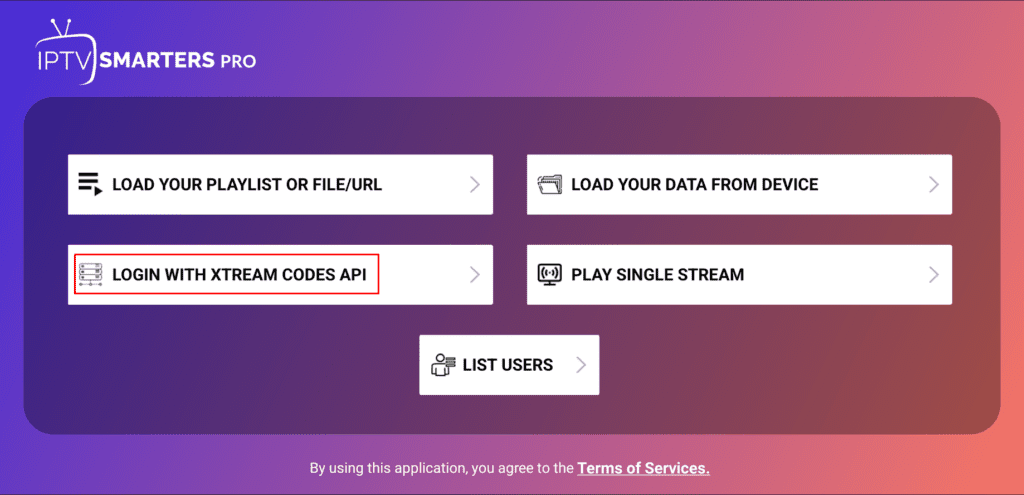
The username and password can be found by looking at the Email Credentials we sent you. 
Step 3: Once you are done logging in, you will be redirected to the list users screen . Click on the profile you just created.
Step 4: Congratulations, you have now successfully set up and configured the IPTV Smarters Pro app.
Setup instructions for a Samsung/LG/Android TV
Search in your TV for one of the APPs below
- IBO Player (Highly Recommended/Very Easy to Setup)
- IPTV Smarters Pro (select Xtream codes API ) (Highly Recommended/Very Easy to Setup)
- DUPLEX play
- Flix IPTV
- SET IPTV
- ELK Player
- Nanomid
- Smart IPV
- Smart STB
- STB Emu
Once you install one of these recommended APPs,
You can use the subscription info that you received from us to log in.
In case you are facing any issues, please contact our support team on WhatsApp and they will help you set the subscription in your APP.
1. We will first install the Downloader app
This app will help you sideload IPTV Smarter on FireStick (because browser downloads are not allowed)
You may also read our detailed guide on how to sideload apps on FireStick with Downloader
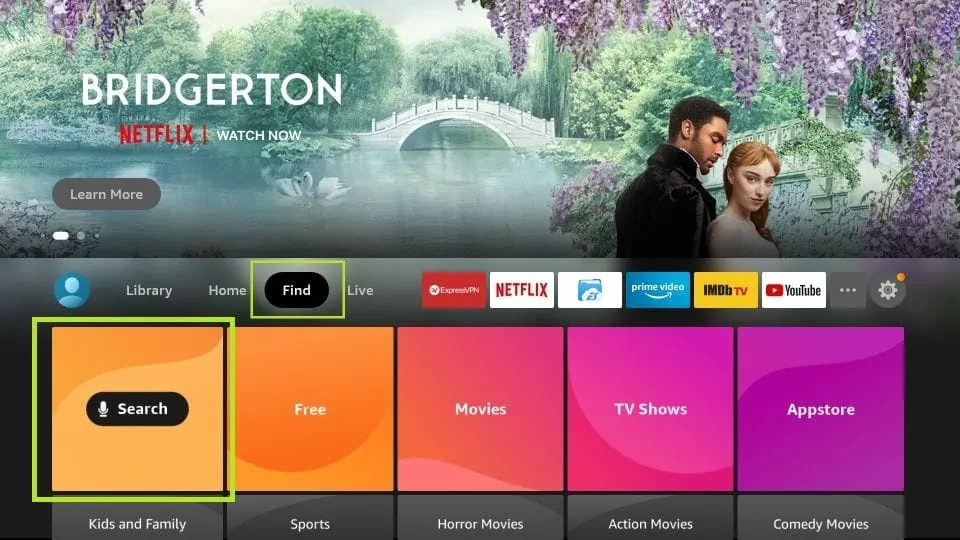
2. Click the Find > Search option on the home screen of FireStick
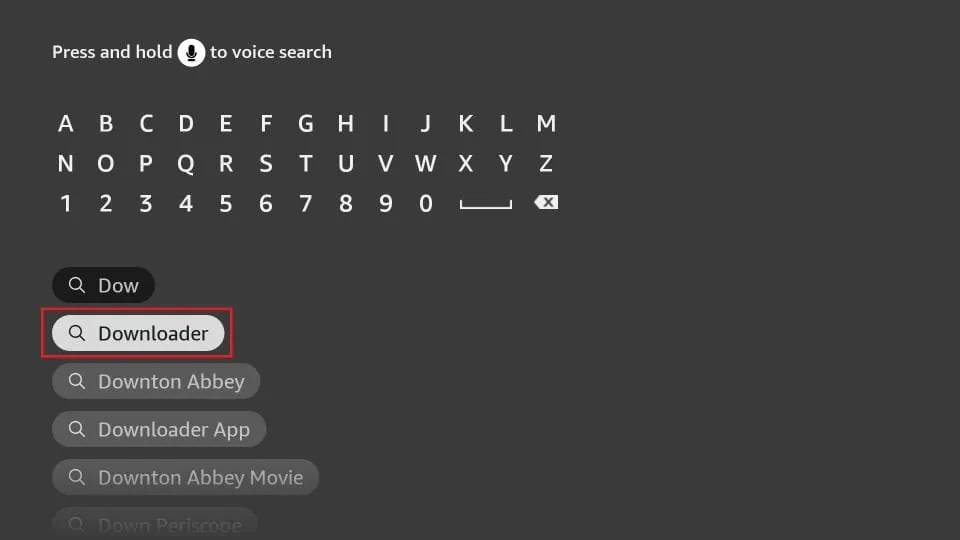
3. Type the name of the app (which is Downloader)
Click the Downloader option when it is displayed in the search results
Choose the Downloader icon on the following screen and download and install the app
4. Get back to the home screen of FireStick after installing the Downloader app
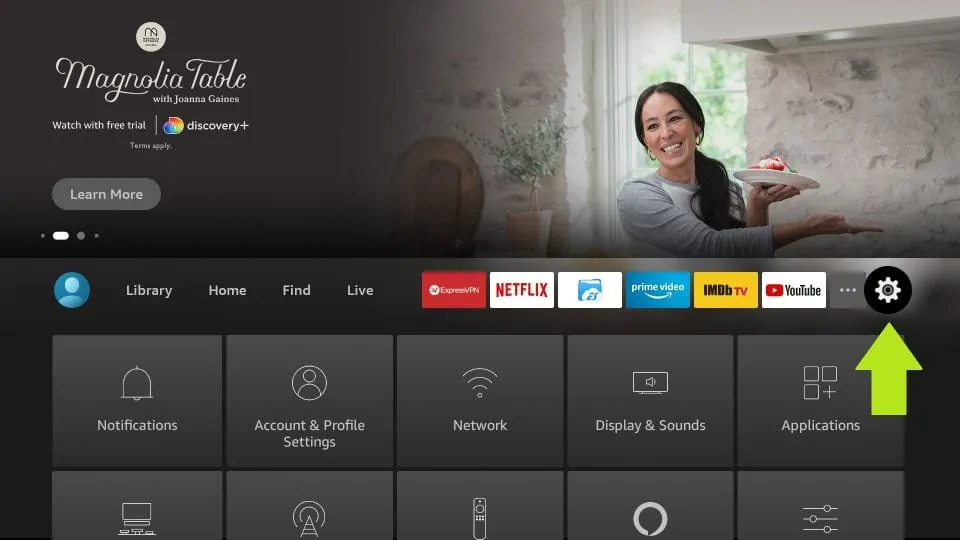
In the menu bar, click Settings
5. In the Settings, choose the option My Fire TV
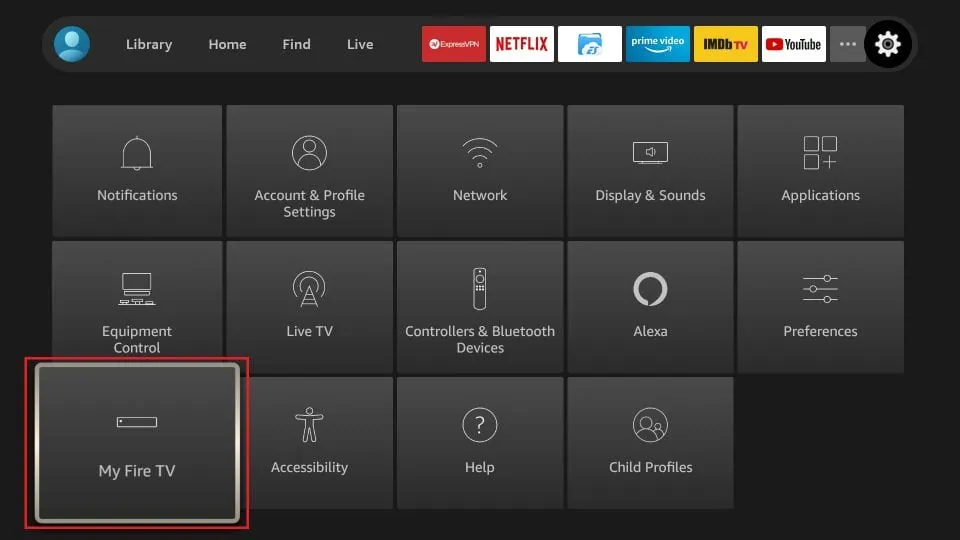
6. When the following set of options are displayed on the next screen, click Developer Options
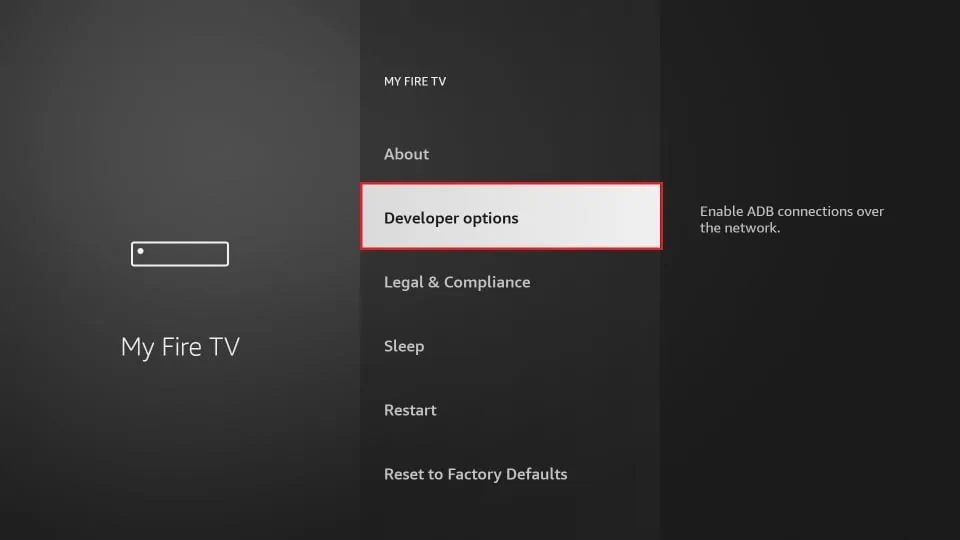
7. Click Install from unknown apps
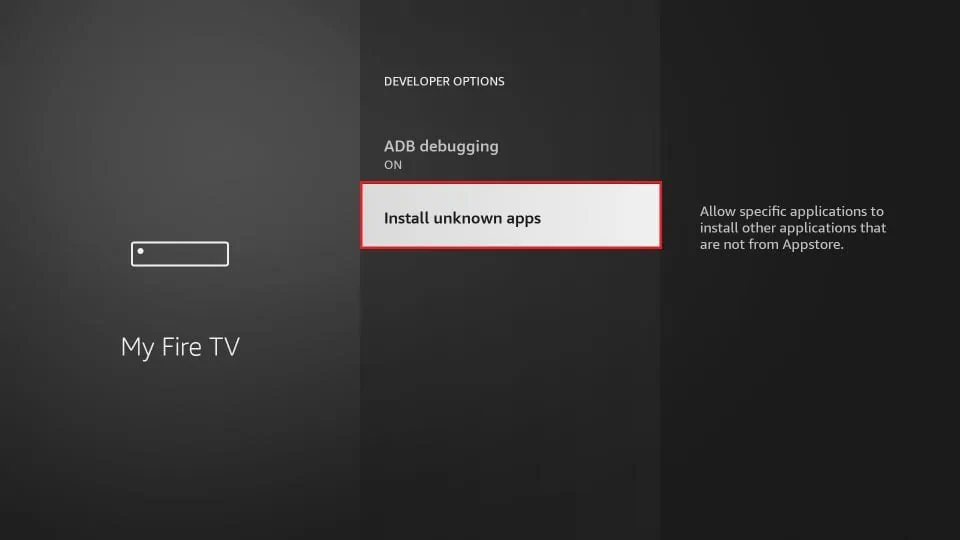
8. Click Downloader to change the status to ON
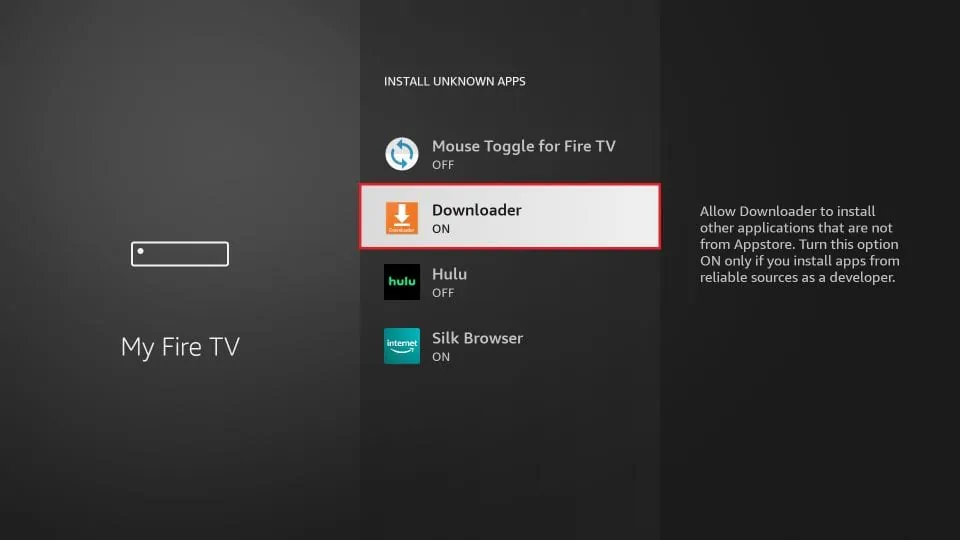
With this, you have configured the FireStick settings to allow the installation of IPTV Smarters and other third-party apps. Follow the steps below:
9. You may now open the Downloader app
When you run this app for the first time, a set of prompts will appear. Dismiss them until you see the following screen
On this screen, you need to click the URL textbox on the right side (make sure Home option in the left menu is selected) where it says ‘http://’
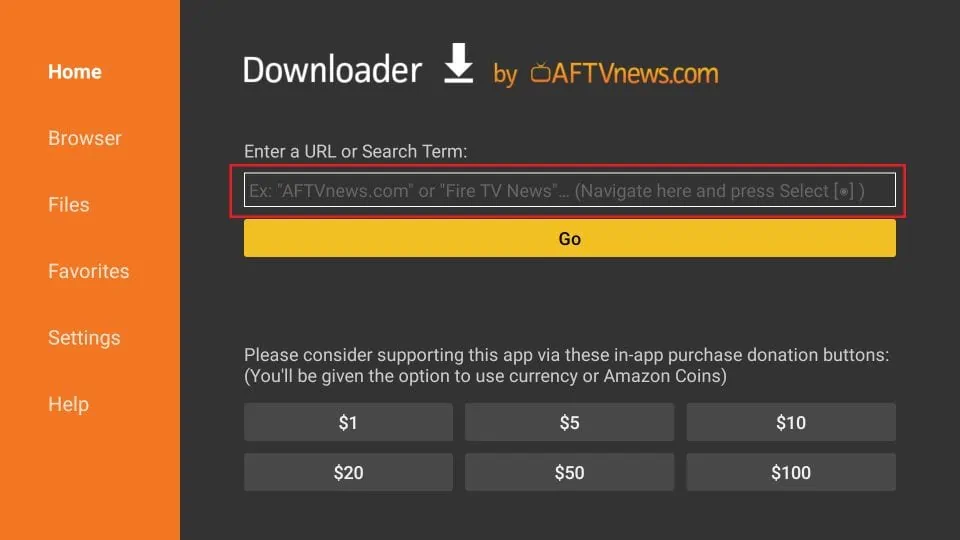
10. Go ahead and enter the following path on this window: https://www.iptvsmarters.com/smarters.apk
Click GO
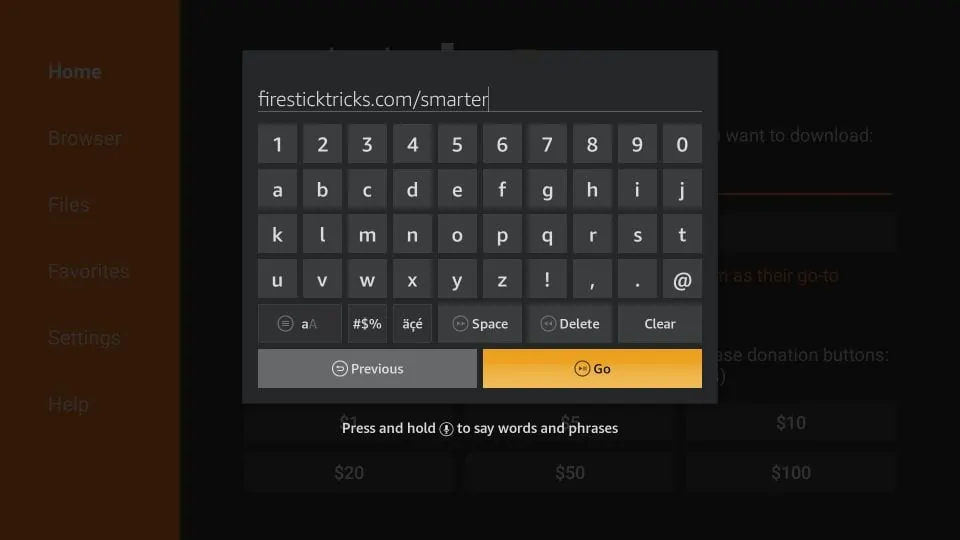
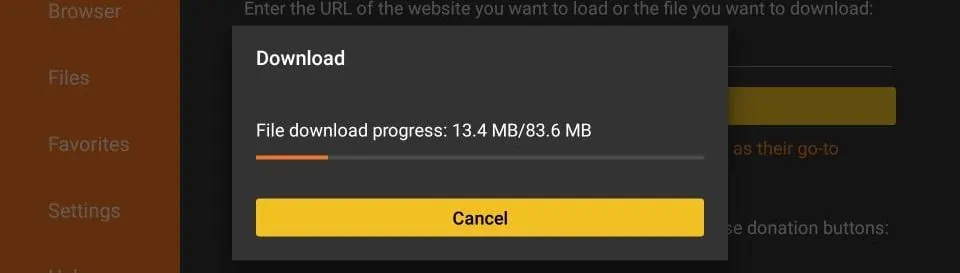
11. Give it a minute or two until the IPTV Smarter is downloaded onto your FireStick device
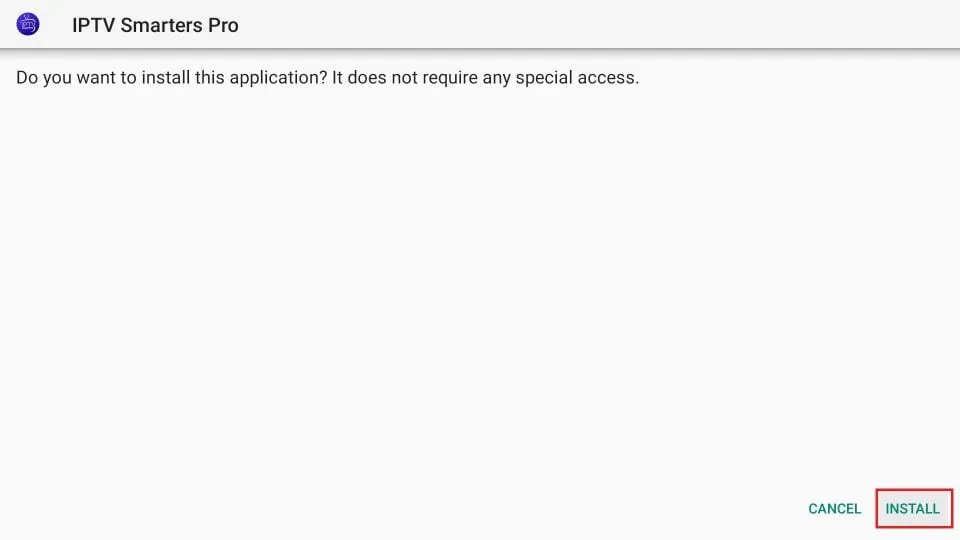
12. When the download has completed, the Downloader app will run the APK file and the installation will start
Click Install
13. Wait for the installation to finish
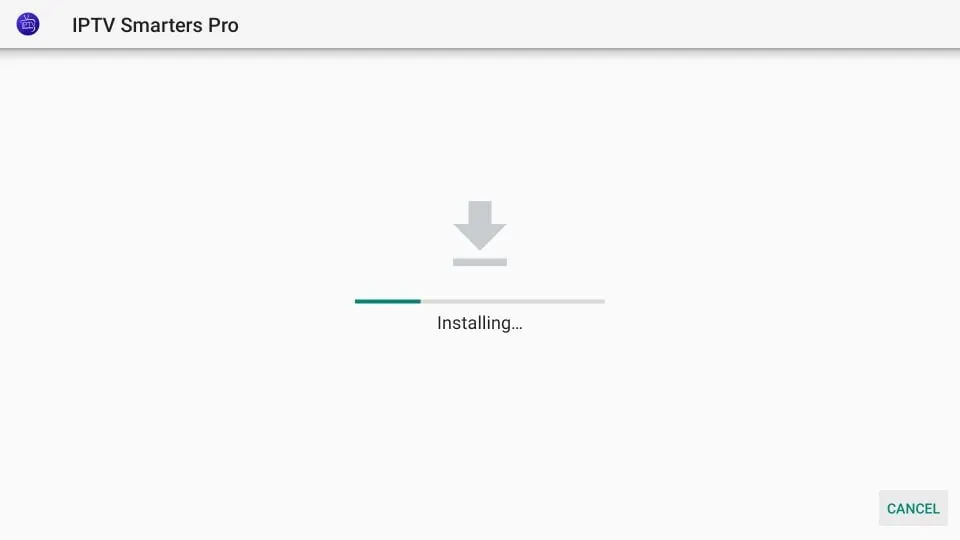
14. Installation is concluded with the App installed notification
You may now choose to click OPEN and get started with IPTV Smarters
I recommend choosing DONE so that you may first delete the APK file and save some space on the FireStick storage
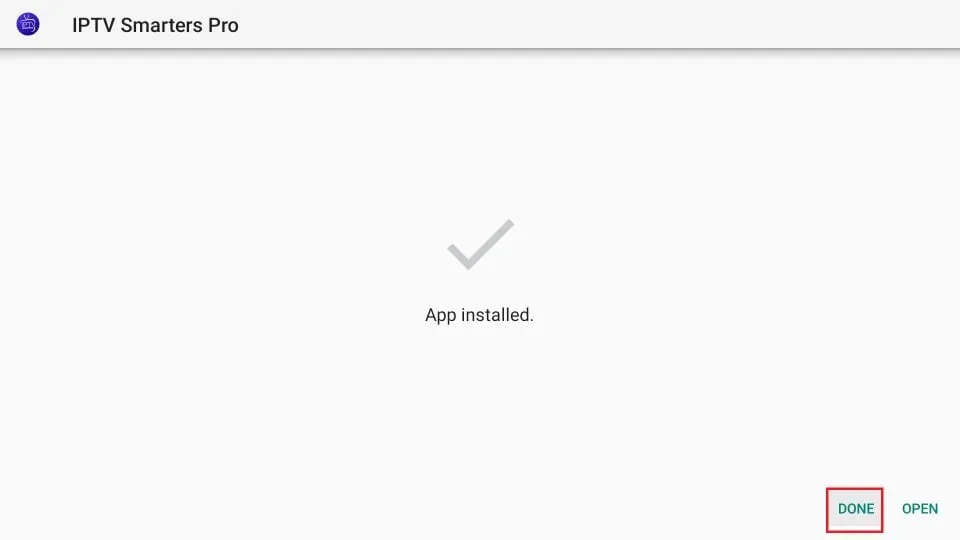
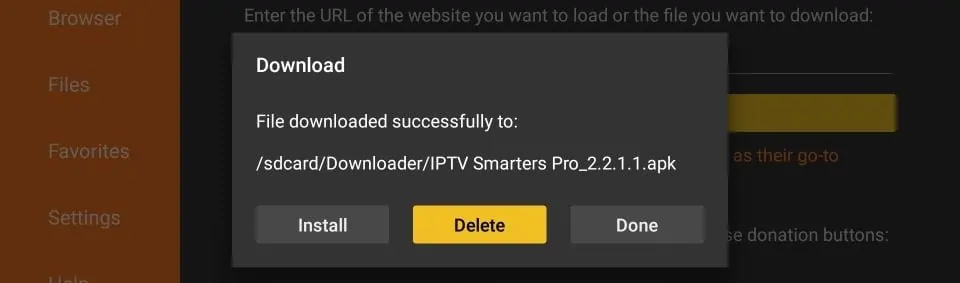
15. If you clicked DONE above, you will be back on the Downloader interface
Click Delete
16. Again, click Delete
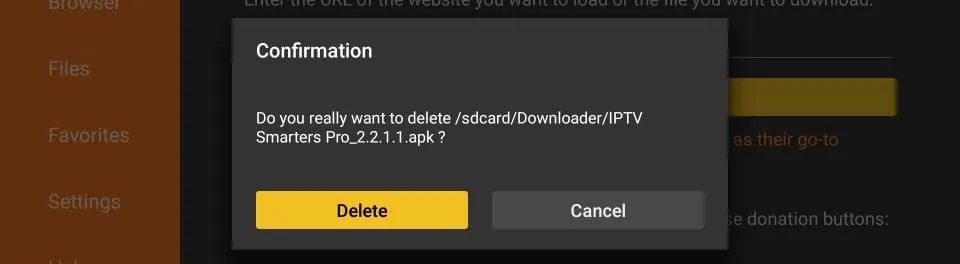
Great! You now have the IPTV Smarters app on FireStick.
Apple ( iPhone/iPad/Apple TV)
Please install one of the recommended IOS apps below:
- IBO Player (Highly Recommended/Very Easy to Setup)
- IPTV Smarters Pro (select Xtream codes API ) (Highly Recommended/Very Easy to Setup)
- GSE IPTV (select Xtream codes API)
- ELK Player
Once you install one of these recommended APPs, select Xtream codes API and you can use the subscription info that you received from us to log in.
In case you are facing any issues, please contact our support team on WhatsApp and they will help you set the subscription in your APP.
Go to the play store and search for one of the recommended APPs Below:
- IBO Player (Highly Recommended/Very Easy to Setup)
- IPTV Smarters Pro (select Xtream codes API ) (Highly Recommended/Very Easy to Setup)
- DUPLEX play
- Flix IPTV
- SET IPTV
- ELK Player
- Nanomid
- Smart IPV
Once you install one of these recommended APPs, You can use the subscription info that you received from us to log in.
In case you are facing any issues, please contact our support team on Whatsapp and they will help you set the subscription in your APP.
Watch IPTV on Your Computer & Laptop
- IPTV Smarters Pro (select Xtream codes API ) Download
- Kodi IPTV Player Download
- Download VLC ( Download URL https://www.videolan.org/vlc/index.html)
- Open VLC Player
- Go to Media -> Open Network stream.
- Add your Subscription M3U URL we sent to you and press play.
- Wait till all the Channels load (this may take some time)
- In case you are facing any issues with M3U loading, please contact our support team on WhatsApp and they will help you set the subscription in your VLC.
Choose a Channel and enjoy the show
This tutorial will guide you through the simple setup instruction for STB Emulator.
‘STB Emulator’ can emulate the following IPTV set-top boxes.
| IPTV Set-top Box | Support |
| MAG 200 | Yes |
| MAG 245 | Yes |
| MAG 250 | Yes |
| MAG 260 | Yes |
| MAG 270 | Yes |
| MAG 275 | Yes |
| Aura HD | Yes |
STB Emulator Setup Instructions:
- Download ‘STB Emulator’ from the Google Play Store here.
- Install and Load the ‘STB Emulator’ app and you will see your ‘MAC address’ on screen.
- Tap near the ‘Top right corner’ and then click ‘Settings’ – the 4th icon from the right.
- Tap ‘Profiles’.
- Tap ‘Test portal’ to modify the existing profile or ‘Add profile’ to start a new one.
- Tap ‘STB Model’.
- Tap ‘MAG 250’ or whichever STB you wish to emulate.
- Tap ‘Portal settings’.
- Enter your ‘Portal URL’ (Check your activation e-mail) and click OK.
- Now tap ‘Screen Resolution’.
- Choose ‘1280×720’ (You can choose higher with internet speed 16+ Mbps).
- Exit the app and restart.
- You will now see your channel list.
Troubleshooting STB Emulator
If you have any problems viewing the Channels please follow this recommended fix:
Restart your App, Device/Box, and Wi-Fi Router.
In case you are facing any issues, please contact our support team on WhatsApp and they will help you set the subscription in your APP.
Connect MAG DEVICE to TV and Internet. Then do as follows
- Go to: Settings—> System Settings —> Servers—>Portals
- Set Portal 1: Get Best
- Set Portal 1 URL ( see your E-mail )
- Set Portal 2 Name leave this empty add this only If you order the second subscription
- Set Portal 2 URL leave this empty add this only If you order the second subscription
- Save everything
- Go back to system settings and click “Restart Portal”
- After the box is restarted, wait until the TV load
- A screen shows the channels will appear.
In case you are facing any issues, please contact our support team on WhatsApp and they will help you set the subscription in your APP.
How to Install IPTV on Roku With a Simple Trick
This tutorial provides step-by-step instructions to install IPTV on Roku. Using a Roku device, we must “sideload” IPTV on the Roku device. The instructions below will require the use of a computer in order to download the IPTV app file and add it to your Roku streaming device.
If you are using another IPTV player such as TiviMate, you can also watch IPTV on Roku by casting to your Roku device. IPTV Smarters is one of the best IPTV Players, compatible with hundreds of IPTV services that use a server URL.
Anyways, let’s get into how to install IPTV on Roku. I divided the instructions into four parts to make them easier to follow:
- Part 1: Enabling developer options on Roku
- Part 2: Adding the IPTV Smarters channel
- Part 3: Downloading the IPTV Smarters package on your computer
- Part 4: Installing IPTV Smarters on Roku
Don’t worry, the process is easier than it sounds. Let’s begin.
Enable Developer Options on Roku
1. Launch your Roku by switching to its HDMI input on your television.
2. Grab your Roku remote and press the following buttons in this order: Home Button x3, Up Arrow x2, Right Arrow x1, Left Arrow x1, Right Arrow x1, Left Arrow x1, Right Arrow x1.
3. If done correctly, the developer options menu will appear on your Roku TV screen.
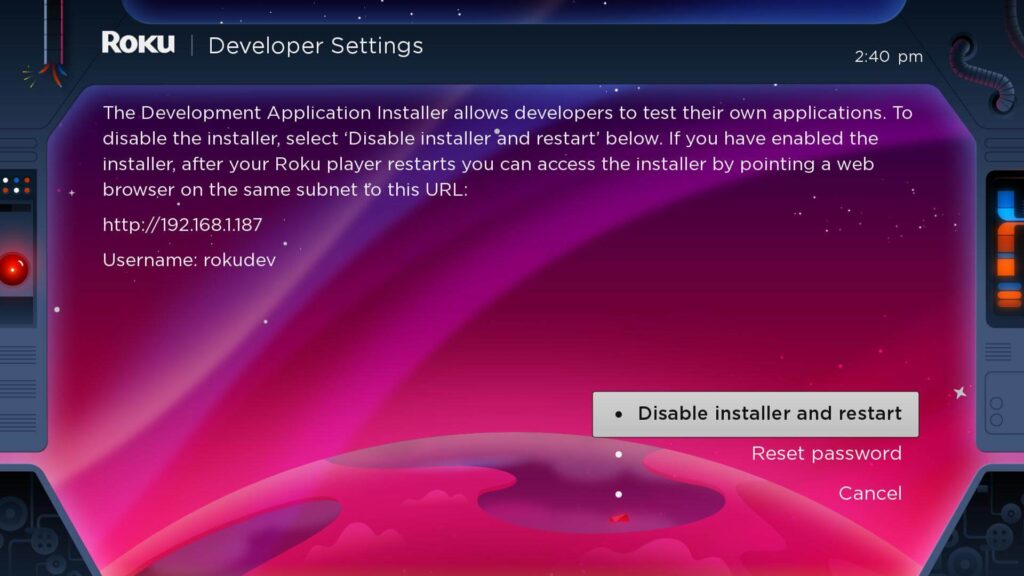
4. Write down the IP address listed on the screen.
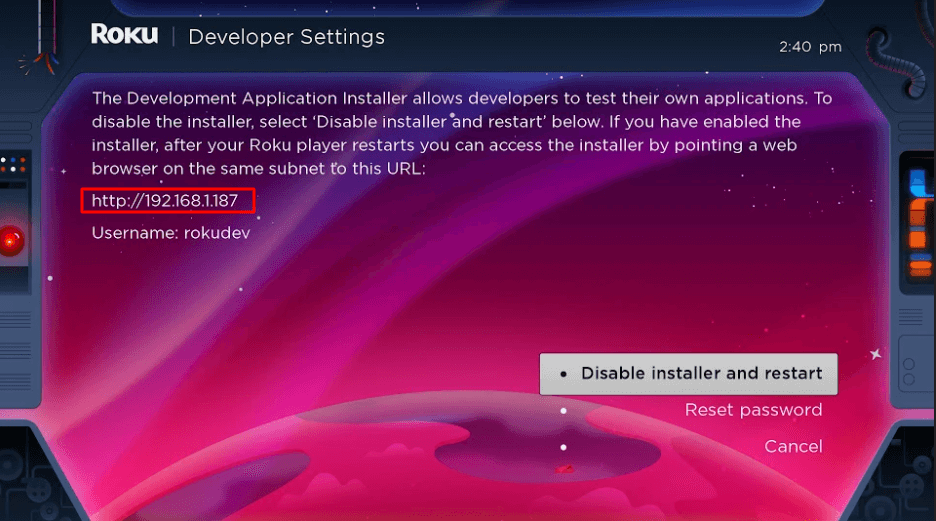
5. Select Enable installer and restart (mine says Disable because I’ve already done this).
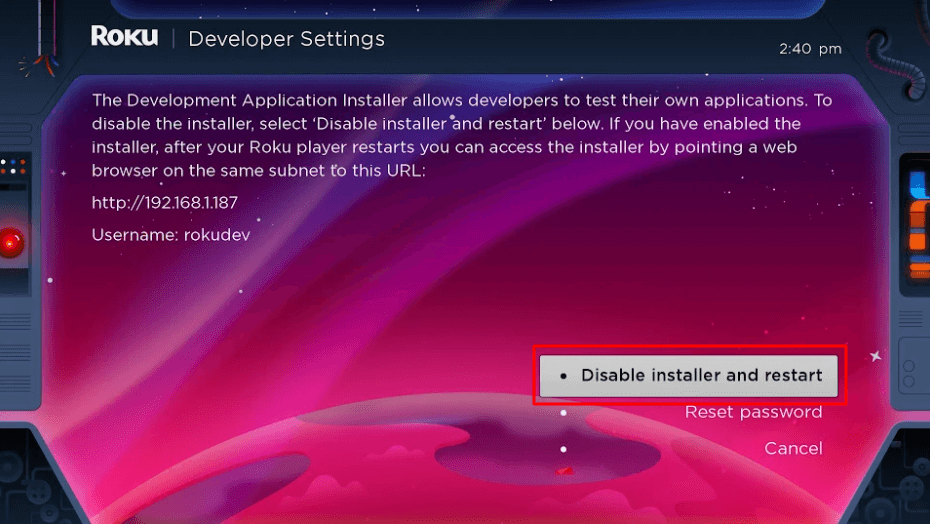
6. Scroll through the Developer Tools License Agreement and select I Agree.
7. Create a webserver password using the keyboard that appears. You will need your webserver password for a later step.
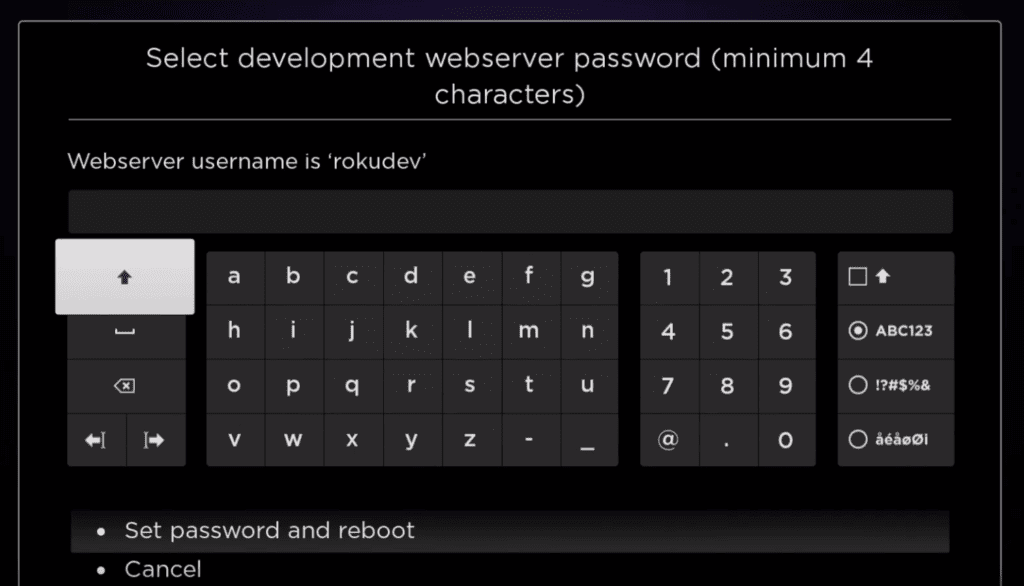
8. Select Set password and reboot.
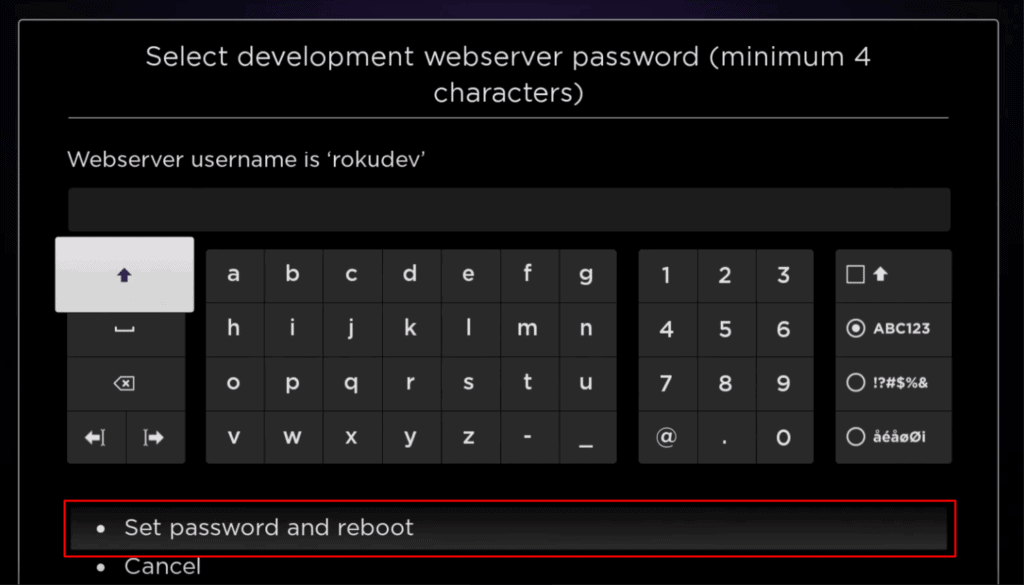
Part 2: Add IPTV Smarters Channel
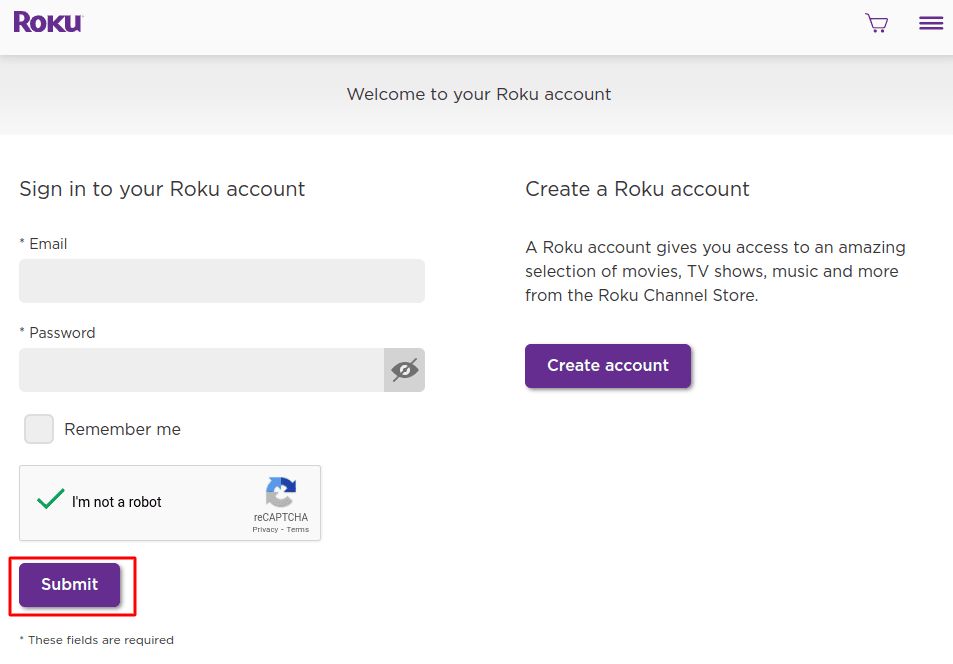
1. Head to your computer and navigate to my.roku.com using any browser.
2. Type in your username and password for your Roku account, and click Submit.
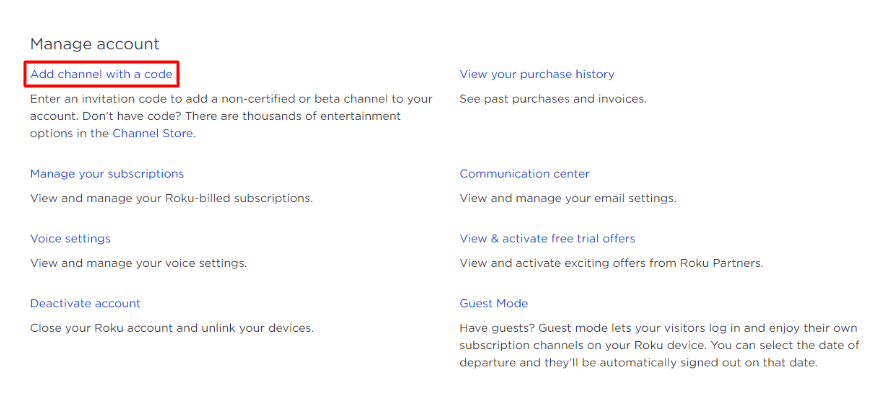
3. Once logged in, select Add channel with a code, under Manage account.
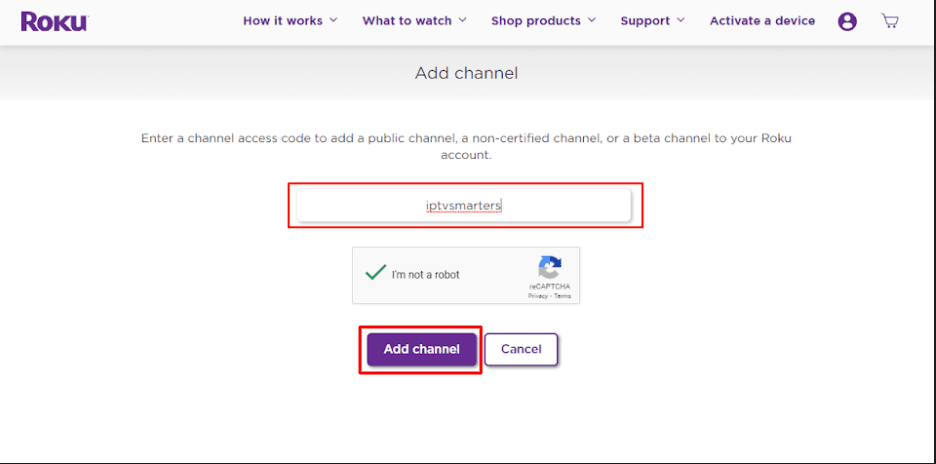
4. Type iptvsmarters into the box. Make sure you’ve typed it exactly as shown.
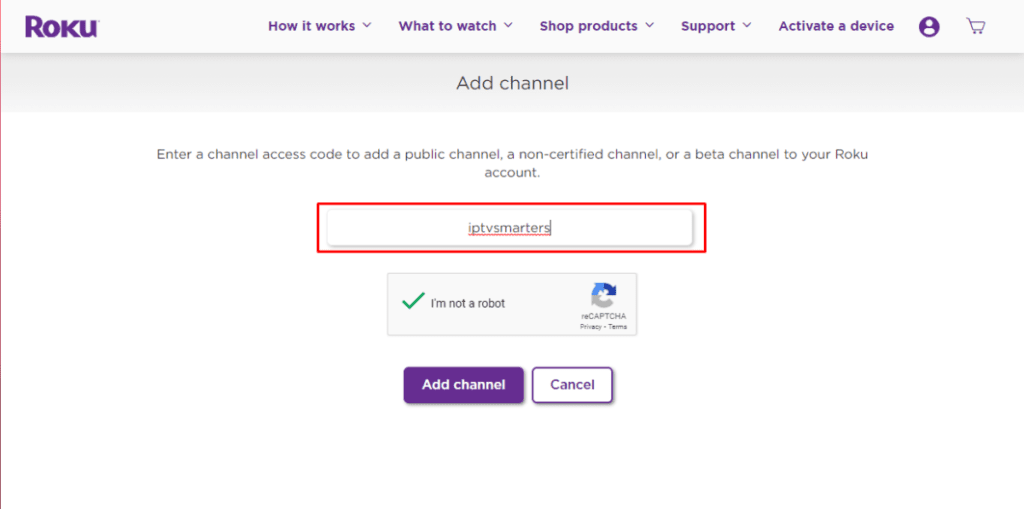
5. Select Add Channel to add it to your Roku.
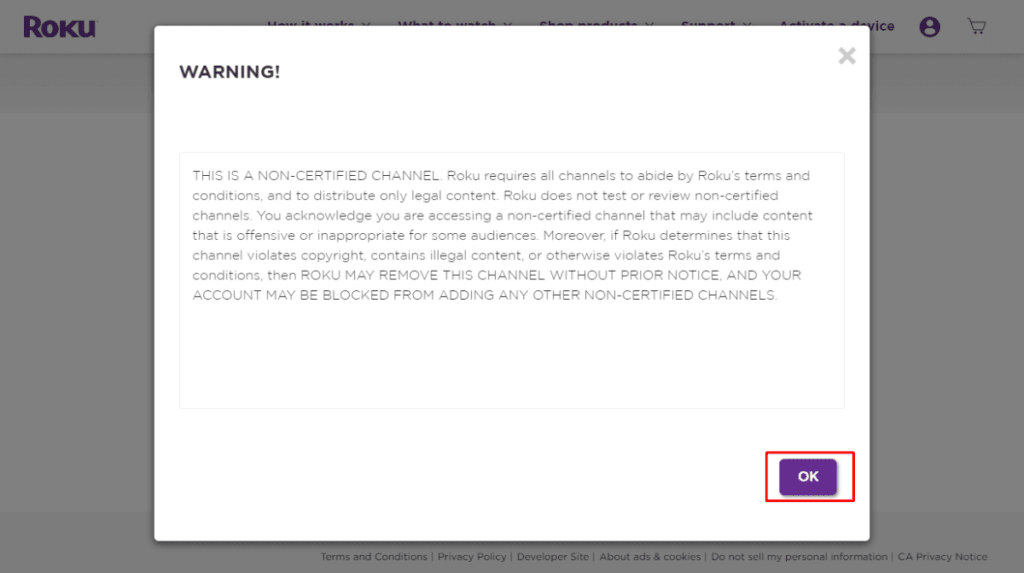
6. Click OK on the warning message that appears.
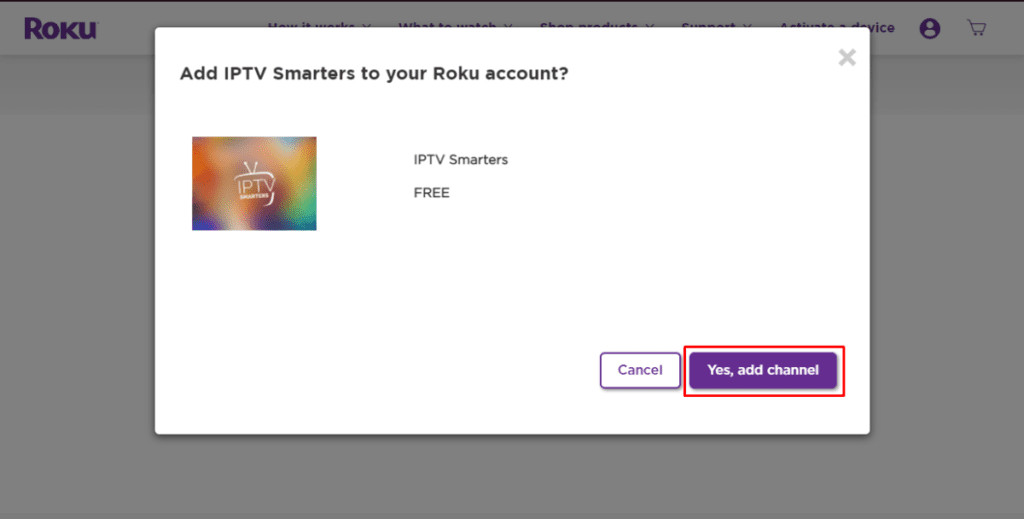
7. Select Yes, add channel on the following popup.
Part 3: Download IPTV Smarters Package on Your Computer
Now, it’s time to download the IPTV Smarters file onto your computer.
1. Head to this link on your computer and the download should start automatically: https://www.whmcssmarters.com/clients/dl.php?type=d&id=108
Note: FireStickTricks.com doesn’t host or distribute this APK. The link leads to the site where it’s hosted.
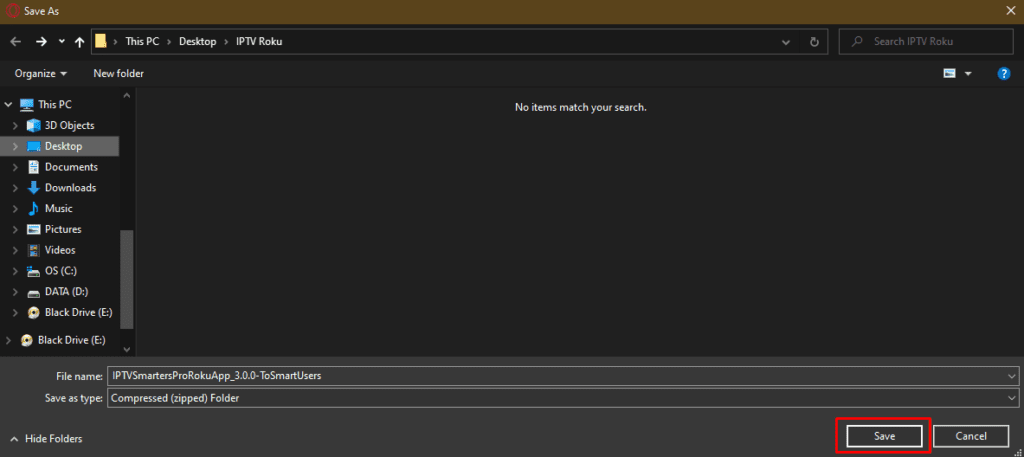
2. Save the IPTV Smarters package somewhere accessible on your computer (you’ll need to browse to this location in a moment). I’m going to save it on my Desktop.
Part 4: Install IPTV Smarters on Roku
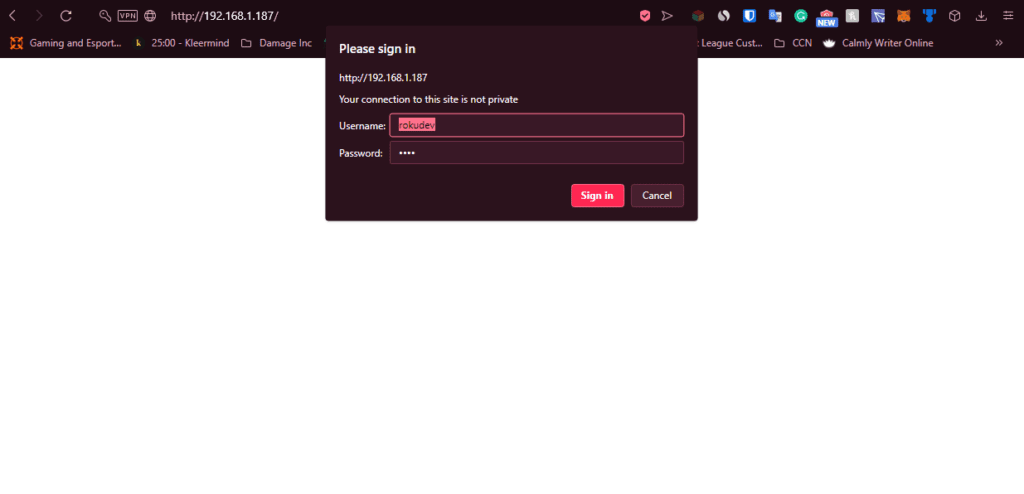
1. On your computer, open any browser. In the address bar, enter the IP address from your Roku that you wrote down earlier.
2. A sign-in box will appear. Type rokudev as the Username. For the Password, type in the webserver password you created earlier. Finally, click Sign in.
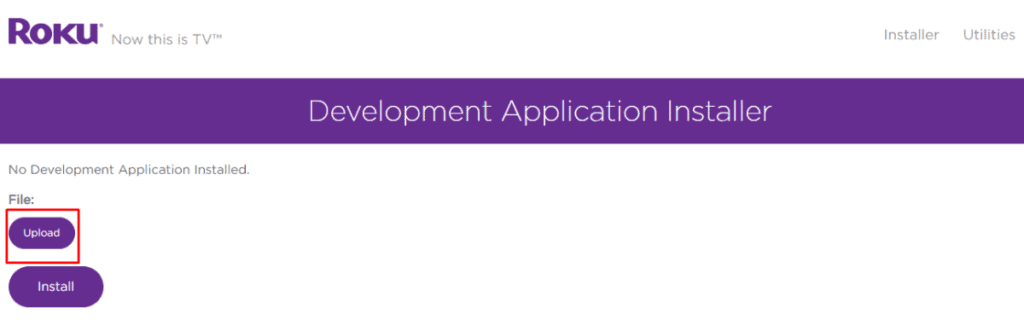
3. Click Upload on the next page.
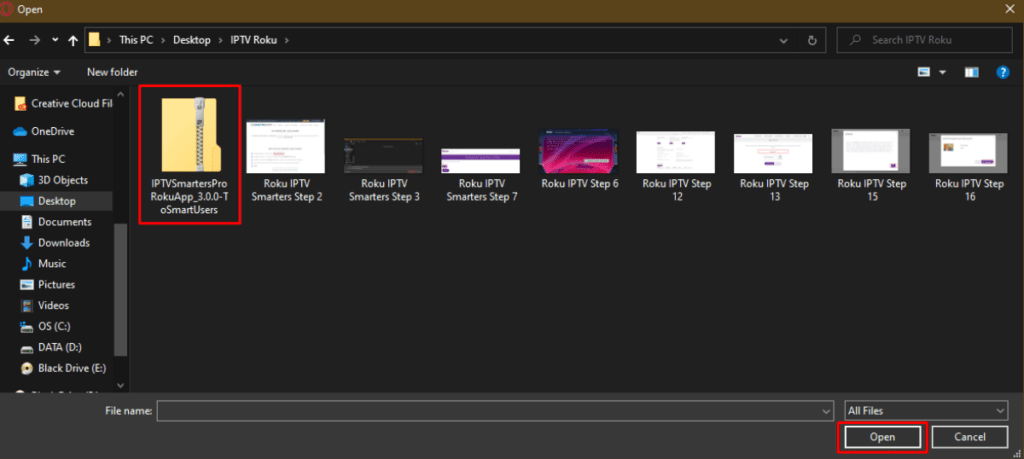
4. Browse to the location where you downloaded the IPTV Smarters package (mine was my Desktop). Select the downloaded folder and click Open.
5. Click Install once the file is uploaded.
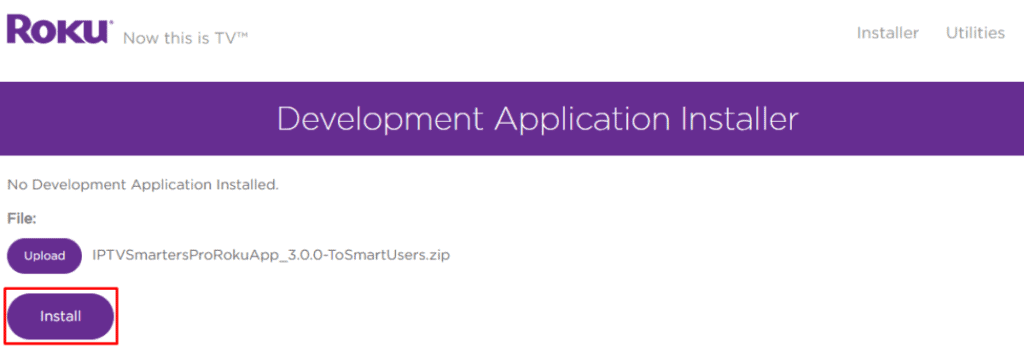
6. If you see this screen, you’ve done it correctly!
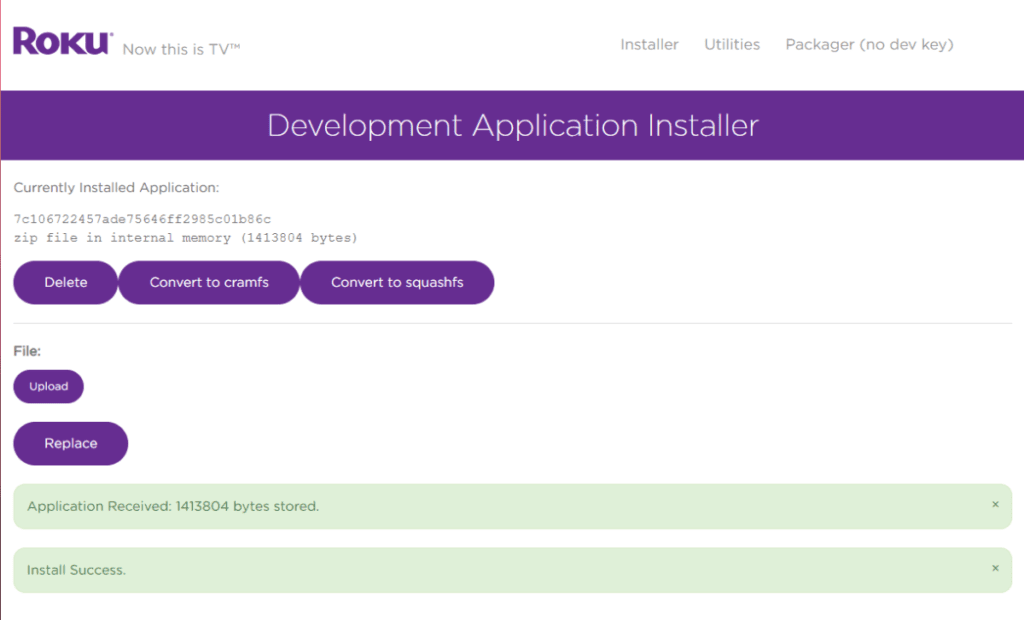
7. Head back to your Roku device, and IPTV Smarters will be on the television.
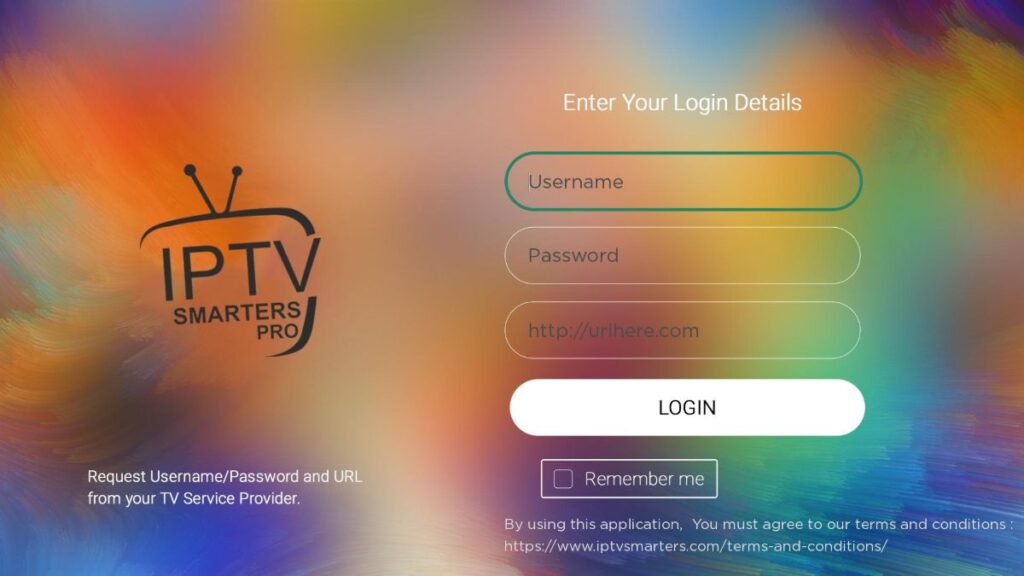
8. Simply log in with your IPTV Smarters information and you’re in!
Steps to Watch IPTV on Roku Through Screen Mirroring
To stream IPTV on your Roku-connected TV using screen mirroring, you need to install IPTV Smarters or Smart IPTV (a different IPTV player) on your smartphone. Once you have one of these two players, you can use the cast or mirror option on your device.
With the cast/mirror option, you can access content on your Roku TV from any device on the same Wi-Fi network that’s using the IPTV player app.
Install IPTV on Sony Smart TV Using Play Store
Initially, Sony Smart TV had the Android TV OS, and they have shifted to the Google TV OS recently. Both TV OS has Google Play Store for installing the streaming apps, and thereby installation procedure is also the same.
1. Turn on your Sony Smart TV and go to the Apps section.
2. Select Play Store and enter the name of the IPTV on the search bar.
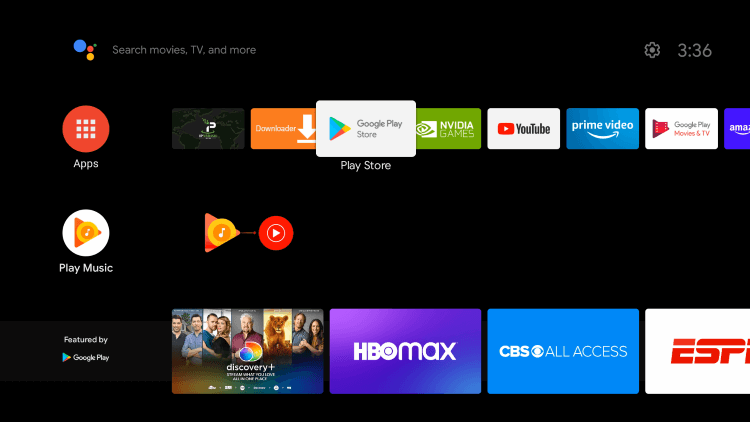
3. Choose the app from the search results and select Install.
4. Wait for the installation to be done, and open the IPTV app.
5. Start streaming the content on your Smart TV.
Install IPTV on Sony Smart TV Using Downloader
Most of the IPTV apps are unavailable in the Google Play Store, then you can install the app using the Downloader app.
1. Launch your Smart TV and select Apps.
2. Open Play Store and click on the Search bar.
3. Search for Downloader and choose the app from the suggestion list.
4. Click Install to install the Downloader app on your TV.
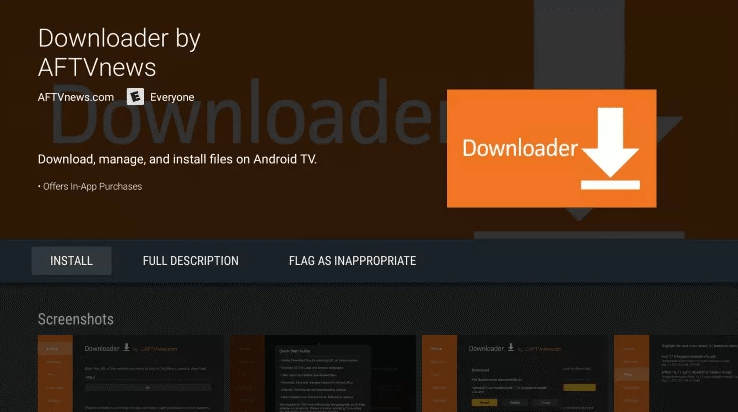
5. Go back to the home screen and select Settings.
6. Select Device Preferences > Security and Restrictions >Unknown sources.
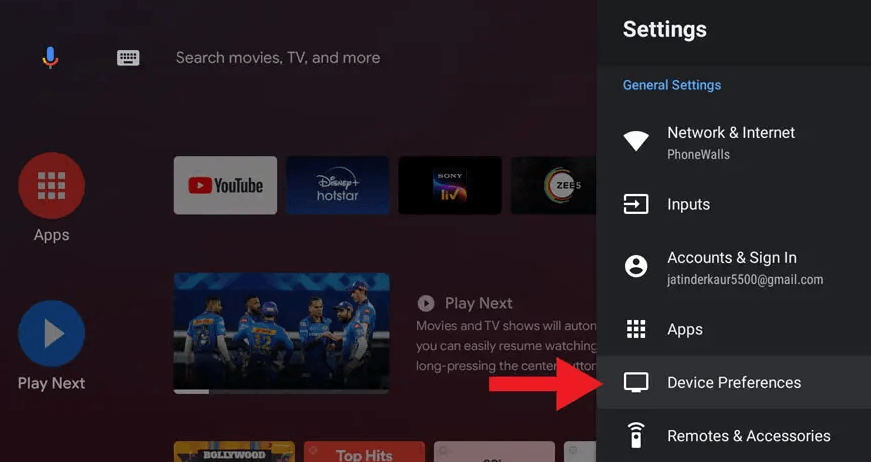
7. Choose the Downloader app and turn on the toggle so that you can install apps from unknown sources.
8. Launch the Downloader app and enter the URL of the IPTV apk on the URL box.
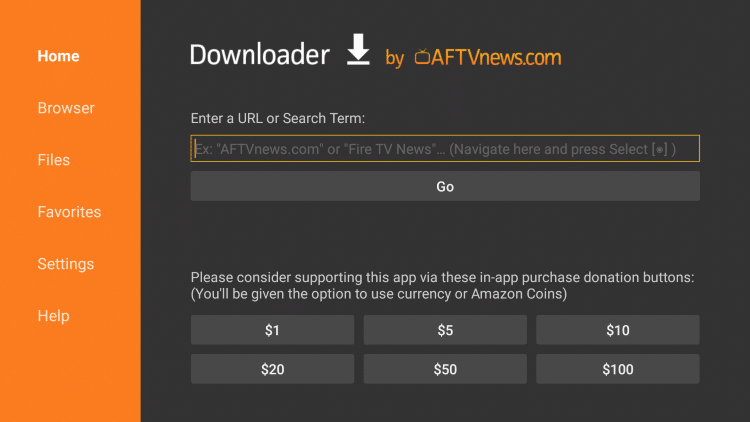
9. Click Go, and the IPTV will be downloaded on your Smart TV. Select Install.
10. Once the installation is done, open the IPTV app and enjoy streaming the content on your Smart TV.
Install IPTV on Sony Smart TV Using USB Drive
You can also get the Apk file on your PC and transfer the file to the Smart TV using USB Drive for installation.
1. Switch on your PC and select the browser.
2. Type the name of the IPTV along with an apk at the end in the search bar.
3. Download the IPTV apk file from a trusted website.
4. Connect a USB Drive on your PC and move the IPTV apk file to the drive.
5. Disconnect the USB from the PC and connect it to the USB port on the Smart TV.
6. On your Smart TV, go to Settings and select Device Preferences.
7. Select Security & Restrictions. Click on Unknown sources and enable it.
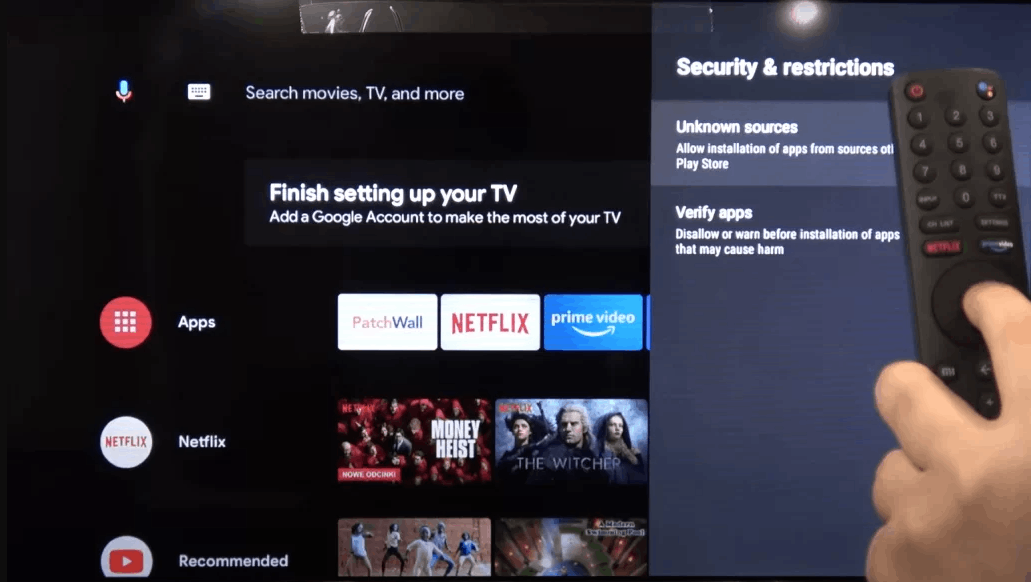
8. Now, move the IPTV apk file on your Smart TV and open the file.
9. Click on Install, and the IPTV app will be installed on your Smart TV.
10. Open the IPTV app and start streaming the content.
Go through all three parts below to get TiviMate on FireStick.
Part 1: Get Downloader on FireStick
1. Open the FireStick home screen.
2. Go to the Find menu.
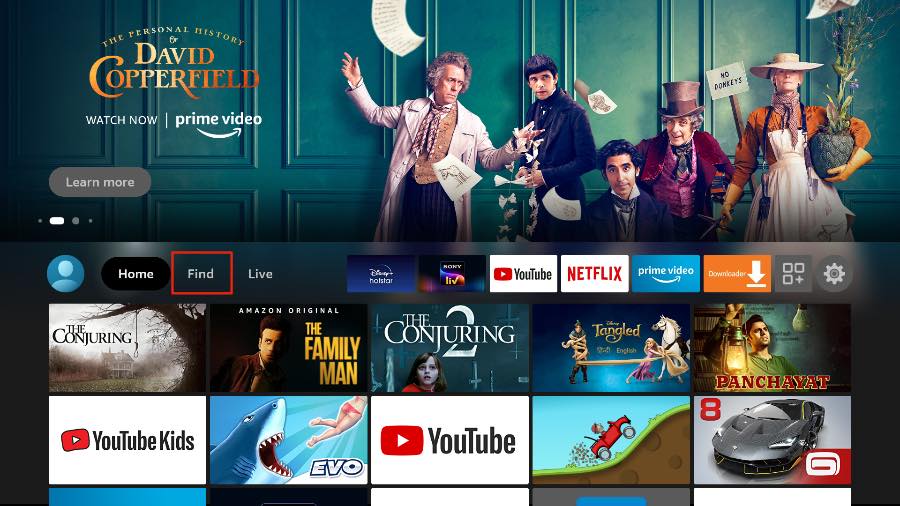
3. Select Search at the top.
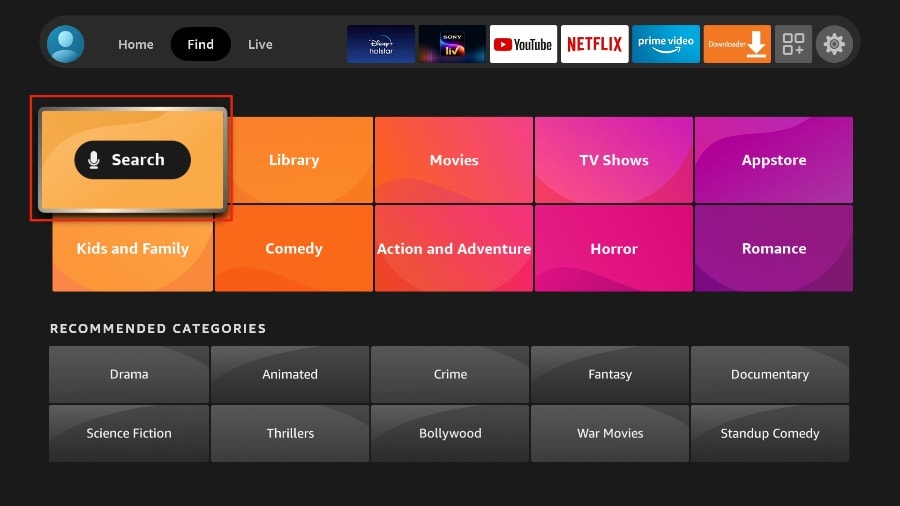
4. It will open a virtual keyboard on your FireStick.
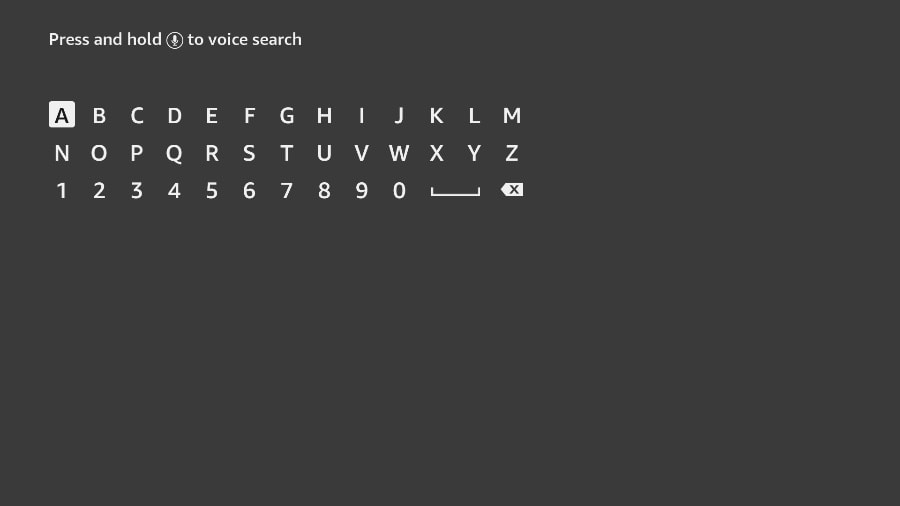
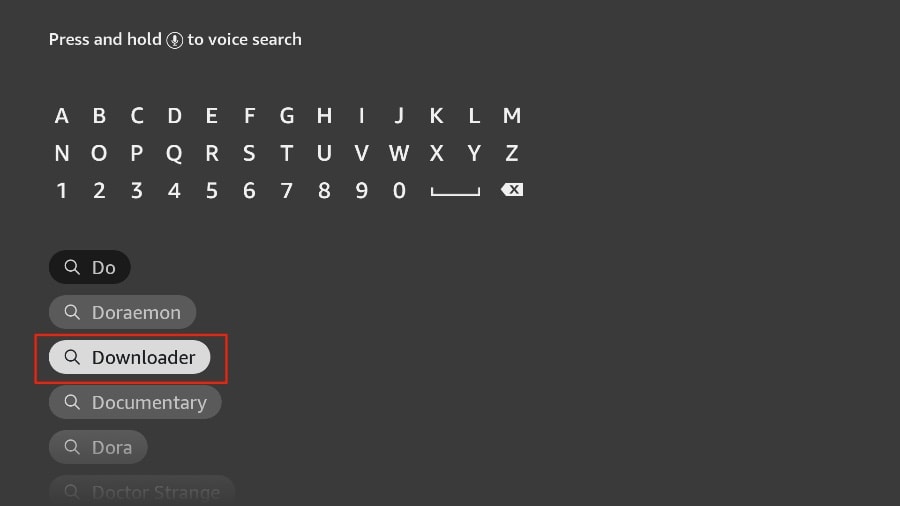
5. Start to type Downloader. Select Downloader when it shows up among the suggestions below the keyboard.
6. Select the Downloader app, which you can recognize by its orange background. Then, on the following screen, select the Get or Download button.
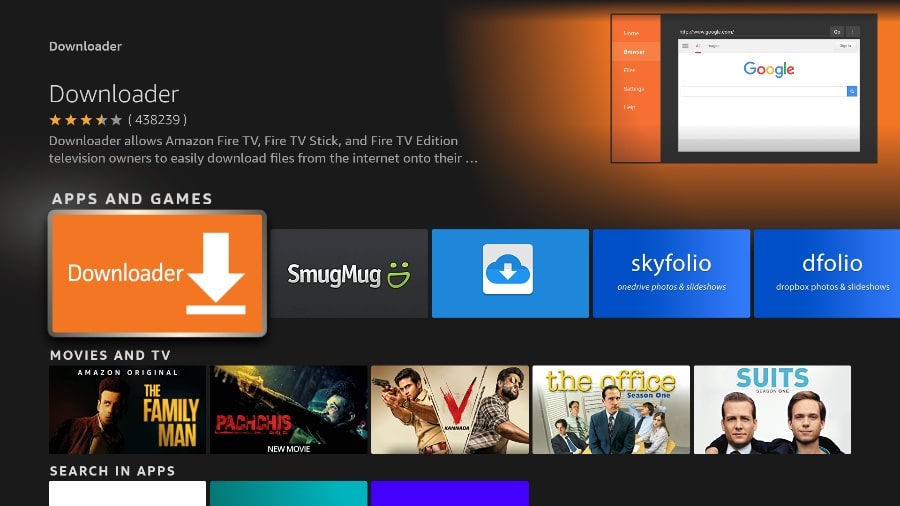
It will take a minute to install the Downloader app on your FireStick. Before you open the Downloader app to install TiviMate APK, you need to make changes in the FireStick settings menu. Otherwise, you will receive errors during installation.
Part 2: Change FireStick Settings
1. Press the home button on your FireStick remote.
2. Go to the settings gear on the far right.
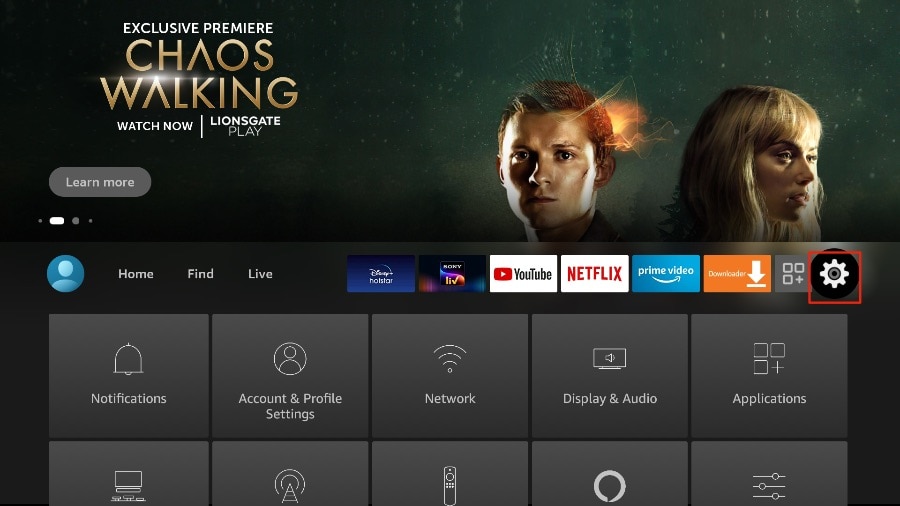
3. Scroll down and select My Fire TV.
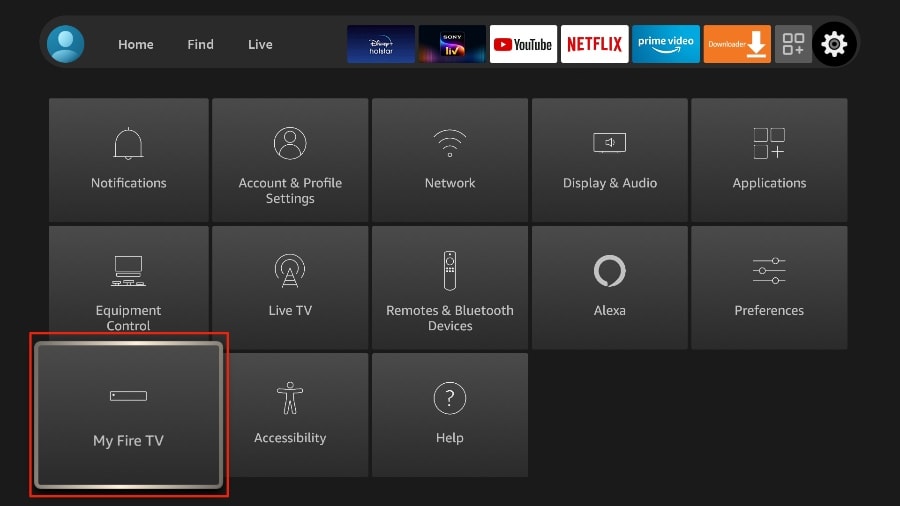
4. Choose Developer Options.
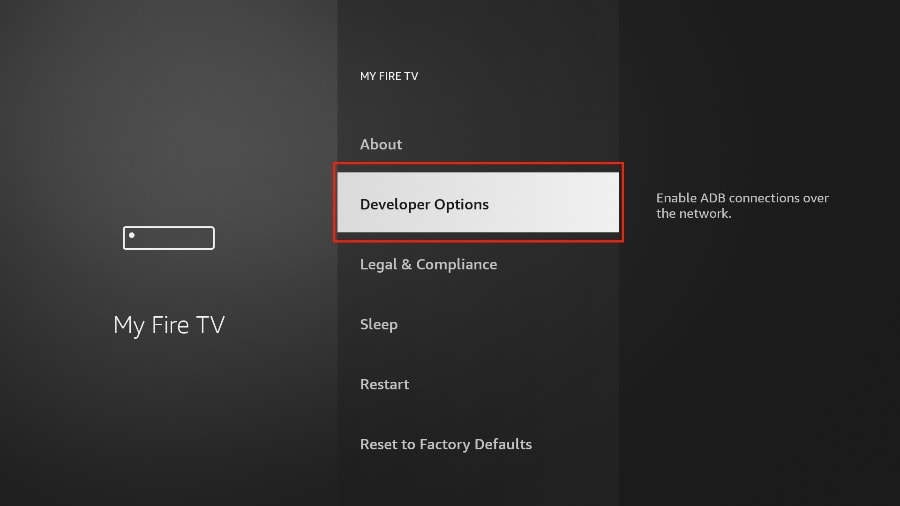
5. Find Apps from Unknown Sources. By default, it’s off. Select it to turn it ON.
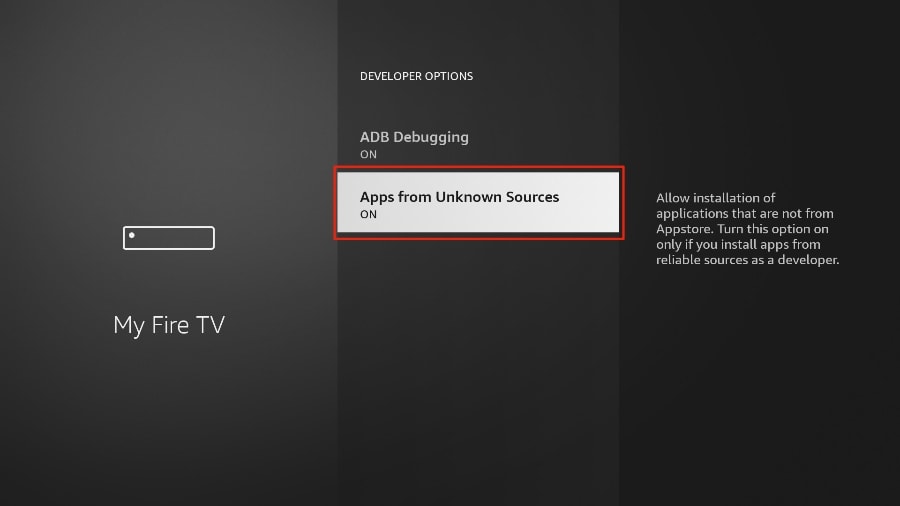
Now you can comfortably sideload any app installation file (APK) on the FireStick without any issue. Follow the steps below to install TiviMate APK on the FireStick using the Downloader app.
Part 3: Use Downloader to Install TiviMate on FireStick
1. Go to the Apps menu from the FireStick home.
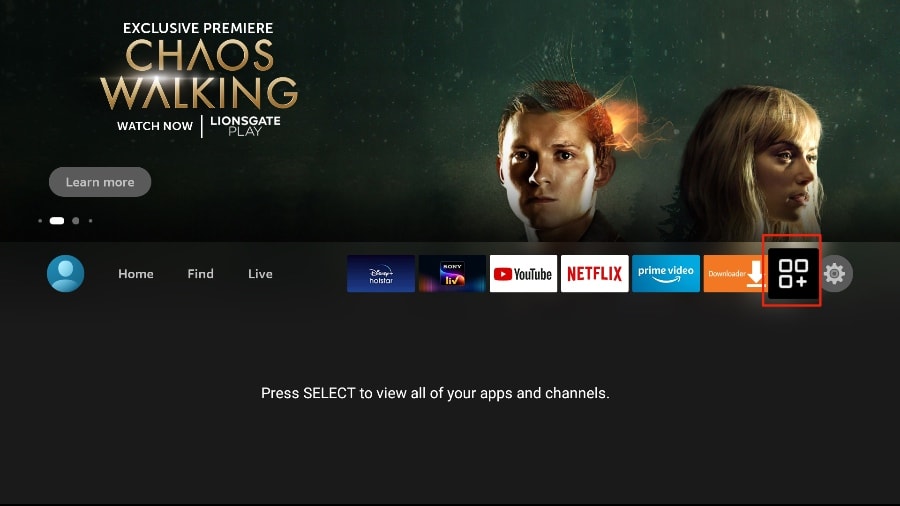
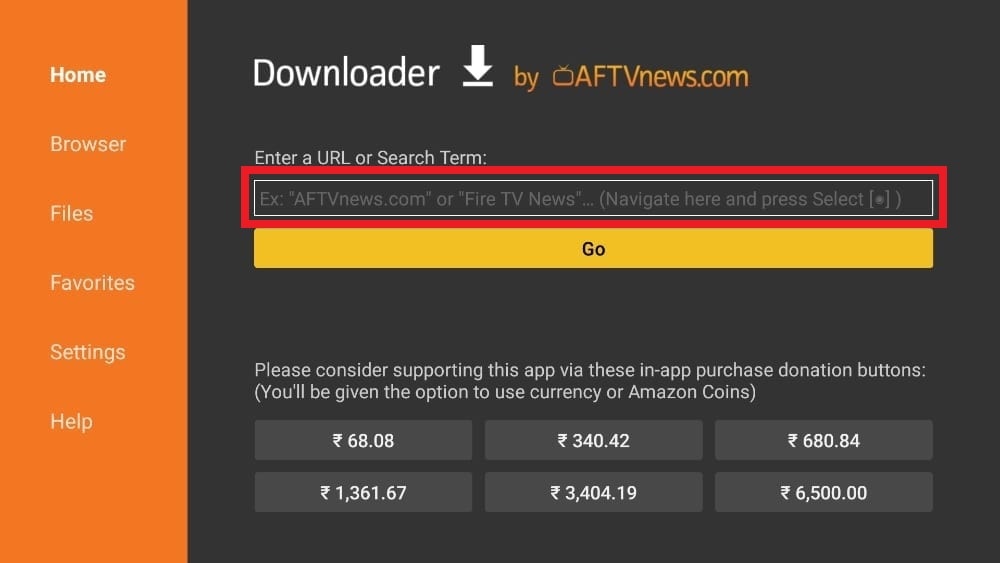
2. Open the Downloader app and select the Enter a URL box on the home screen.
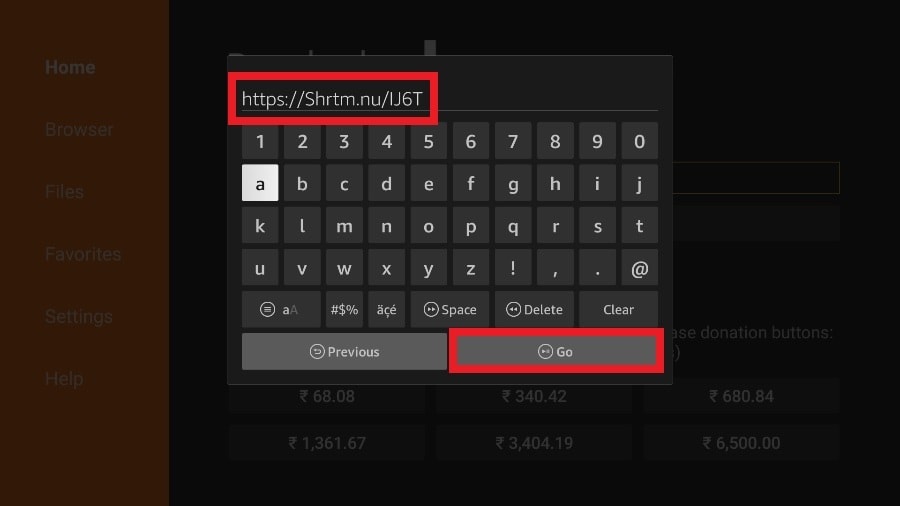
3. It will open a virtual keyboard. Type https://www.firesticktricks.com/tivi and hit Go at the bottom.
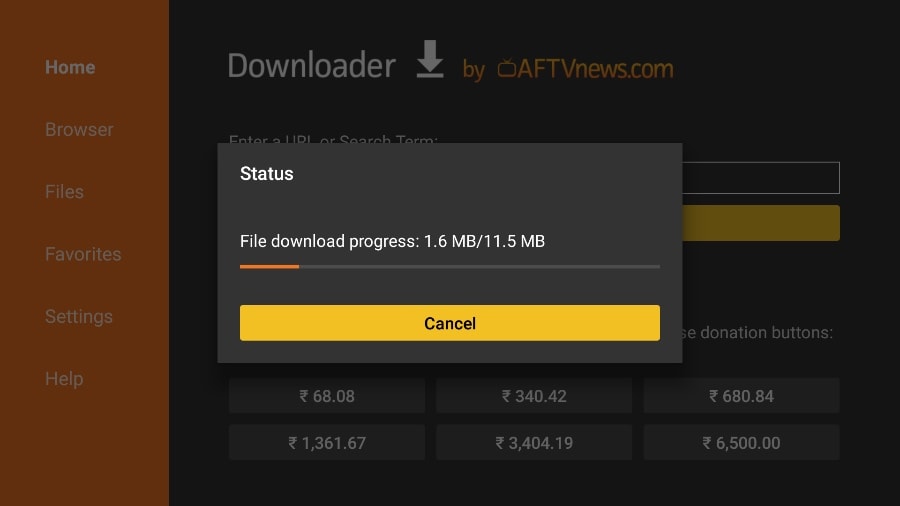
4. Downloader will install the latest TiviMate APK onto your FireStick. It’s about 11MB.
5. Click Install when prompted.
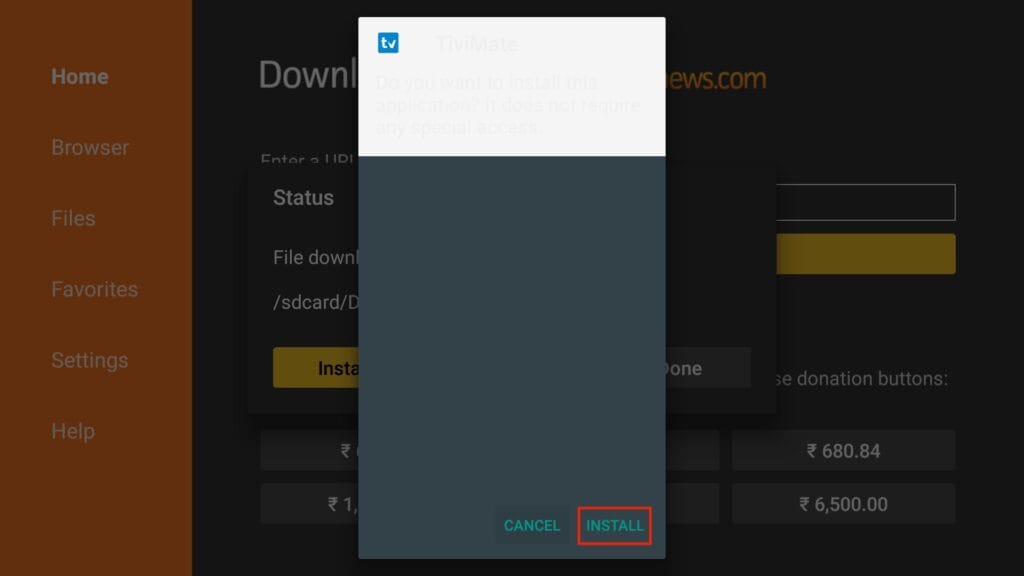
6. After installation, Delete the APK from your device.
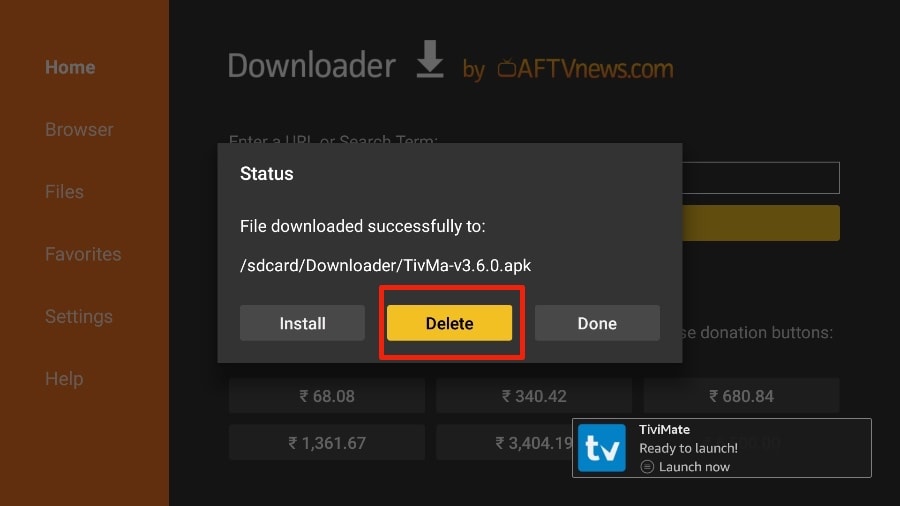
I suggest that our readers delete the APK file on the FireStick because it no longer serves a purpose—we’ve already used it to install TiviMate. In general, I advise you to keep your FireStick free from unnecessary files and media. Being low on storage will result in sluggish performance throughout the device.
That’s it, you’ve successfully installed the TiviMate APK on your FireStick. Now you are all set to enjoy hundreds of live channels, movies, and TV series on the FireStick. Before we discuss the app, let’s make a quick adjustment for our convenience.
TiviMate IPTV Player is an addictive app. You are likely to use the app frequently. I advise you to place the app right on the FireStick home screen for easy access. Go through the steps below to do so.
1. Press and hold the home button on your FireStick remote.
2. Select Apps on the following screen.
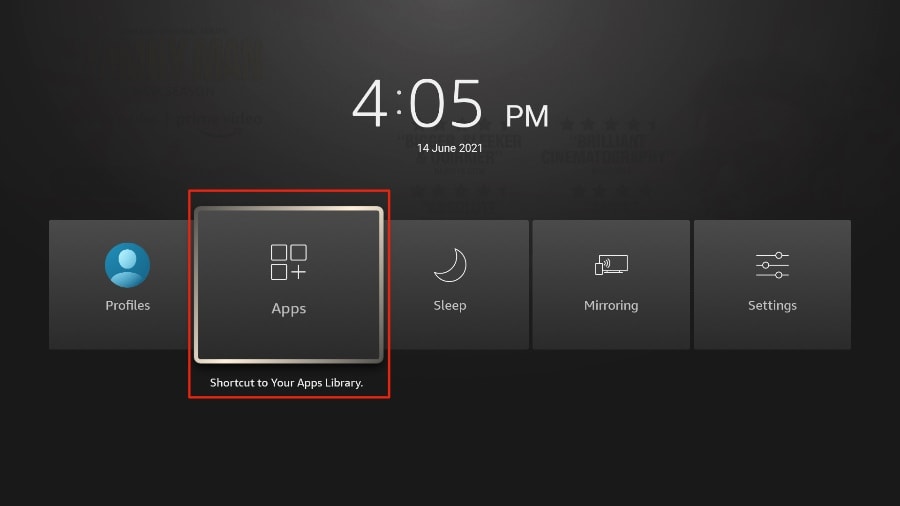
3. Scroll to TiviMate IPTV Player but do not select it. Instead of selecting it, press the options button on your FireStick remote.
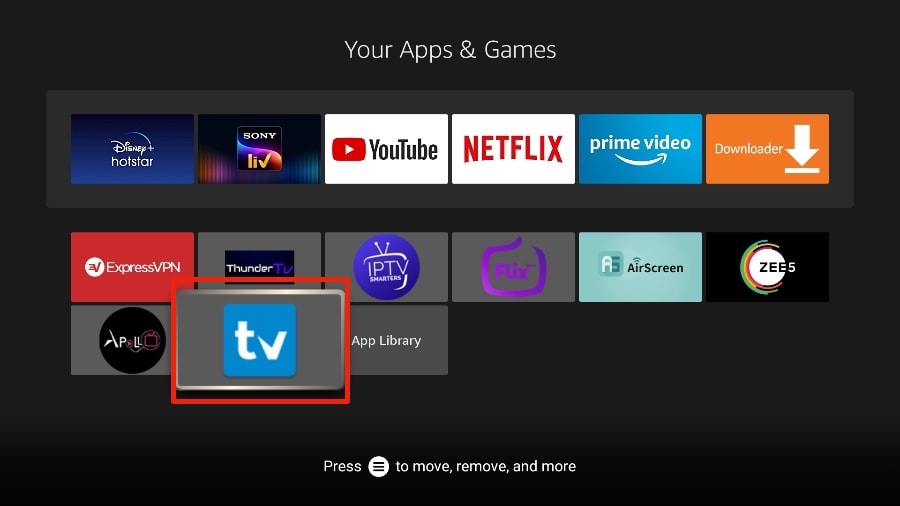
4. You will find the Move option on the right side. Select it.
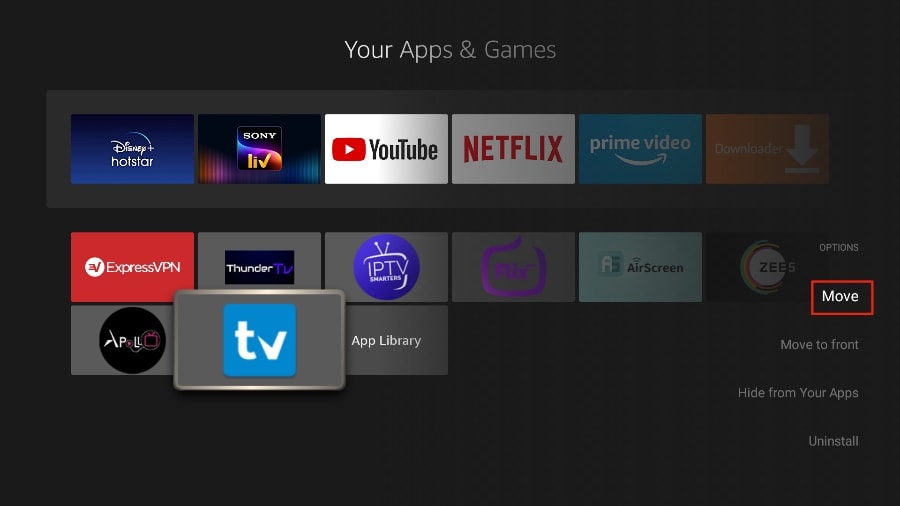
5. Move TiviMate to the top row, then press the select button on your remote to confirm the new location.
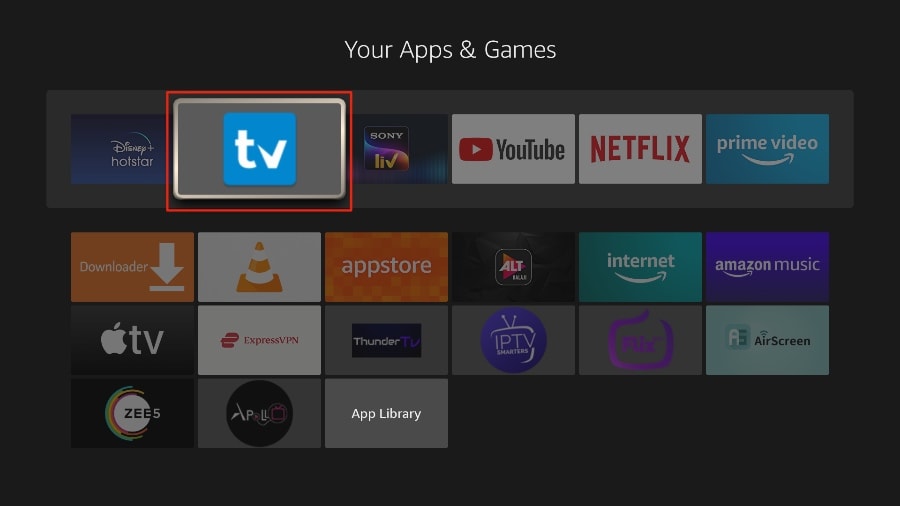
6. Now you can comfortably access TiviMate Player from your FireStick home screen. There’s no need to go through a menu each time.
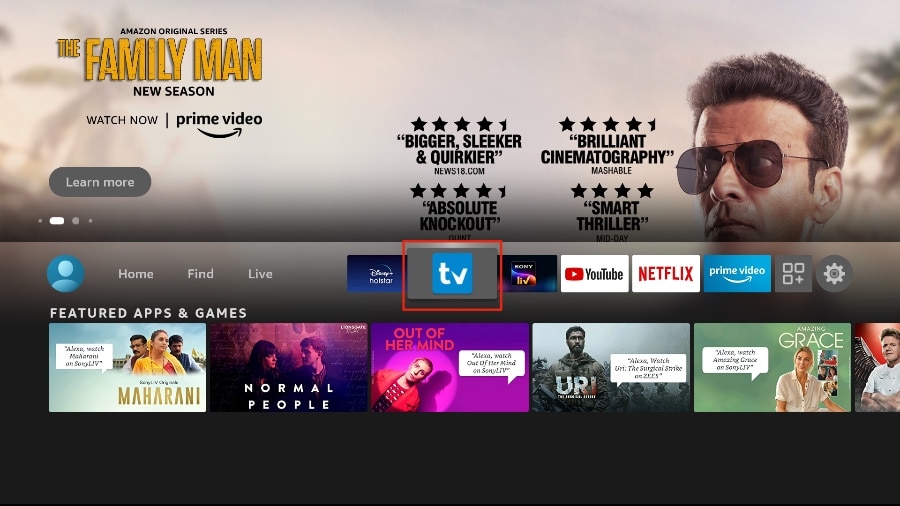
1. Open the TiviMate app.
2. Select Add playlist.
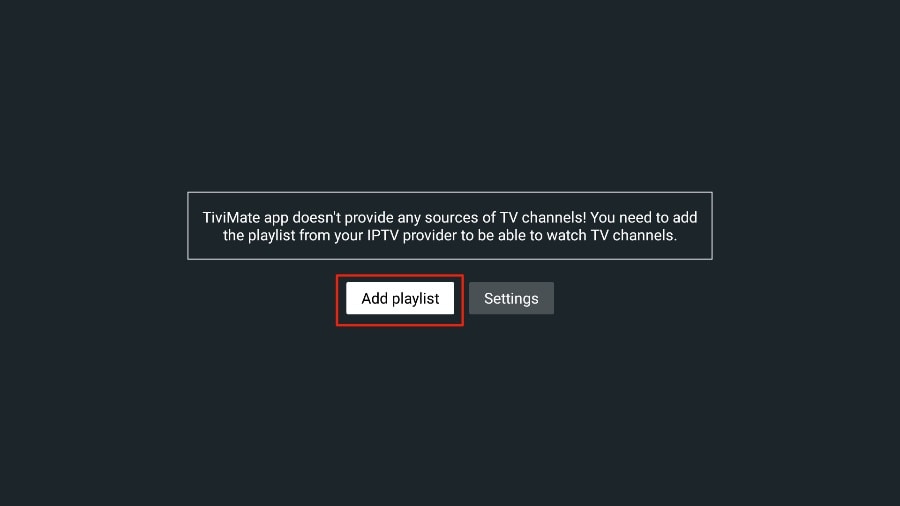
3. TiviMate will ask you to add a playlist using an M3U link, Xtream code, or Stalker Portal. Select the M3U playlist.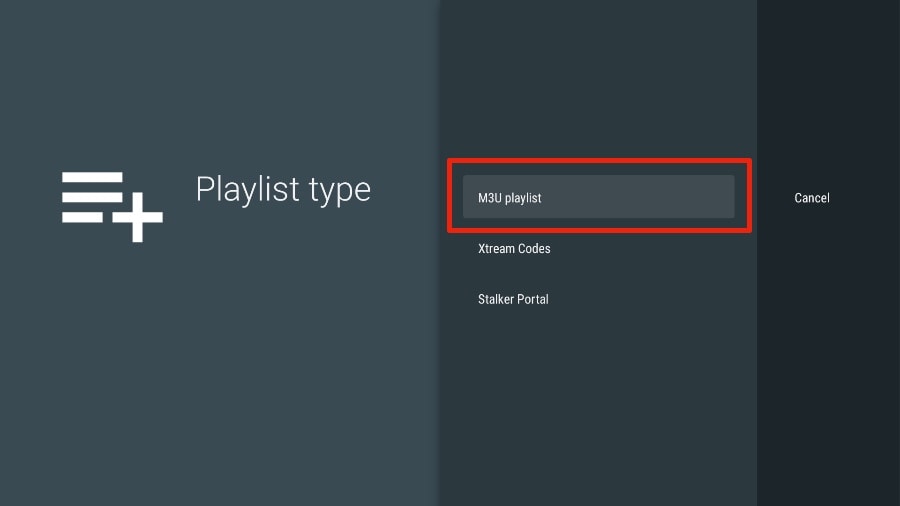
In this article, we will use an M3U link to play an IPTV service in the TiviMate app. When you subscribe to our IPTV service, you will receive an email with relevant login information and an M3U link. If you don’t get an M3U link, please contact our customer suppor.
4. TiviMate will ask for your M3U link. Enter your M3U link and press Next.
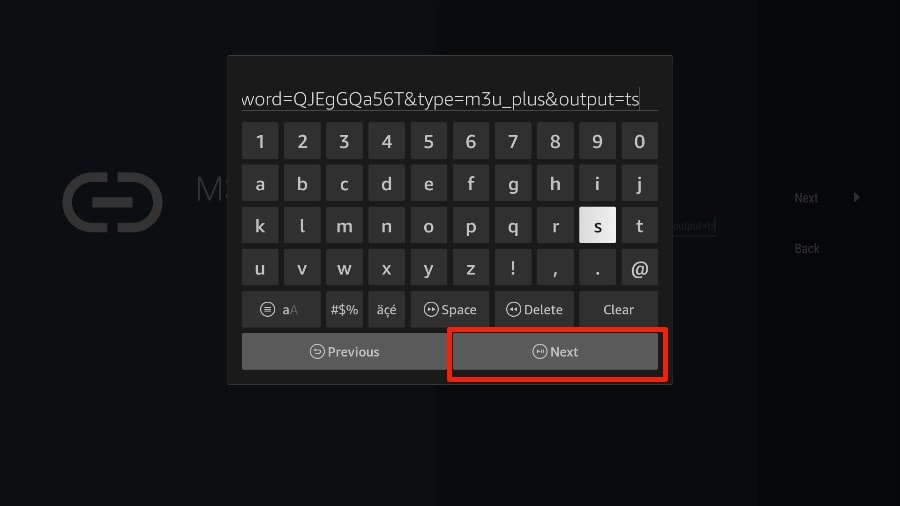
5. TiviMate will load the IPTV service and offer a peek at the number of channels and movies available in the IPTV package.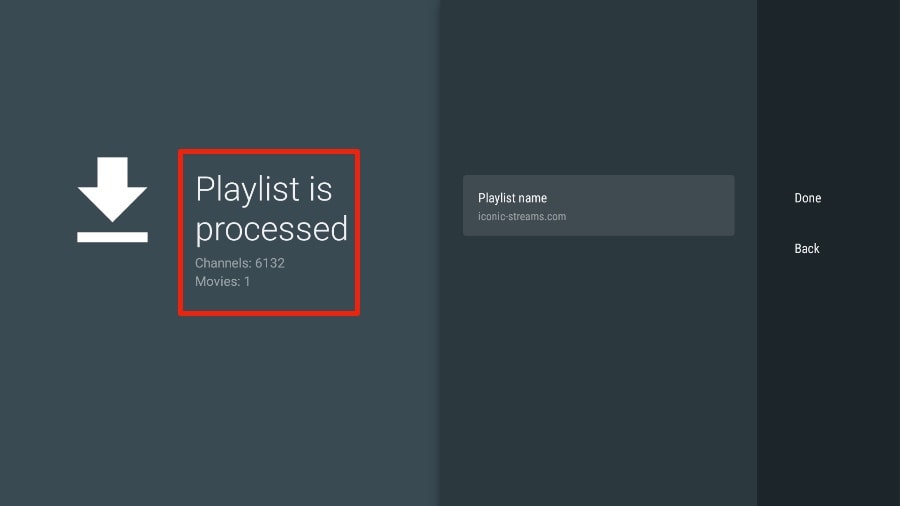
6. Add a Playlist name.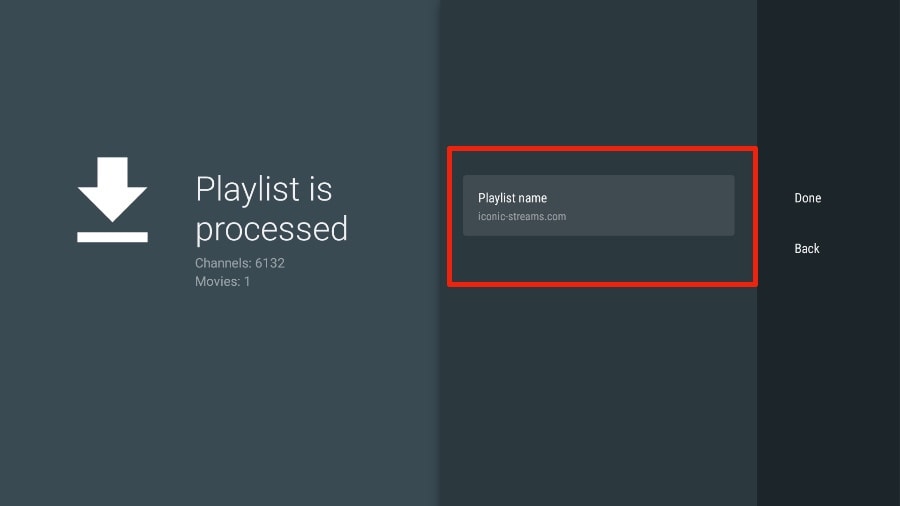
7. If the playlist is finished processing, select Done.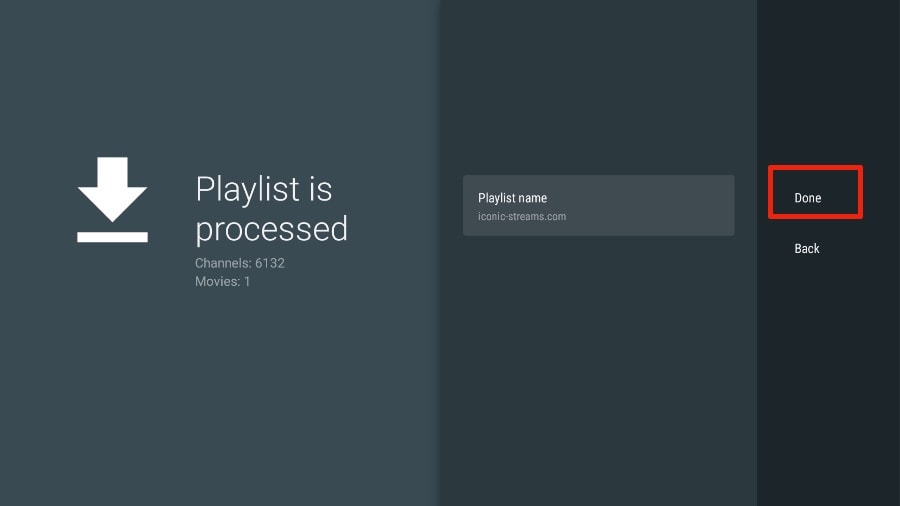
A minute or two later, you will see the IPTV service’s content appearing in the TiviMate app.
Our IPTV comes with a dedicated EPG (electronic program guide), as shown below.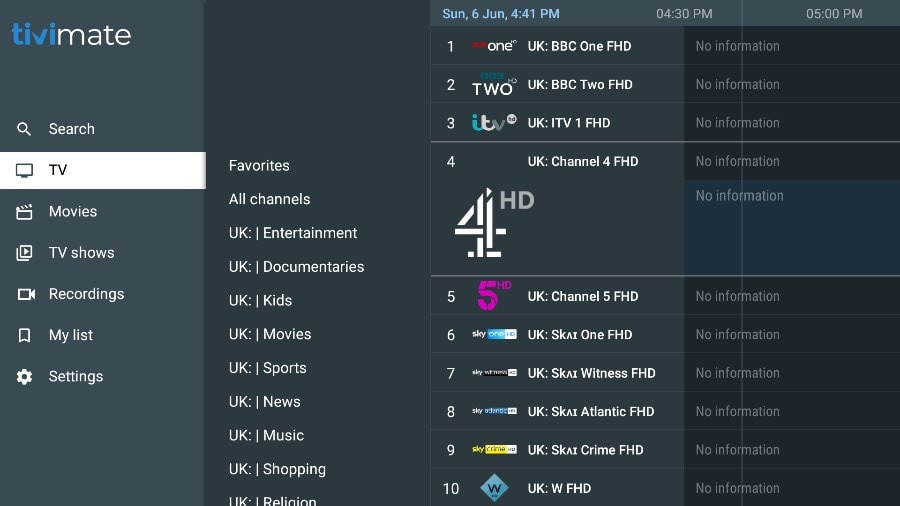
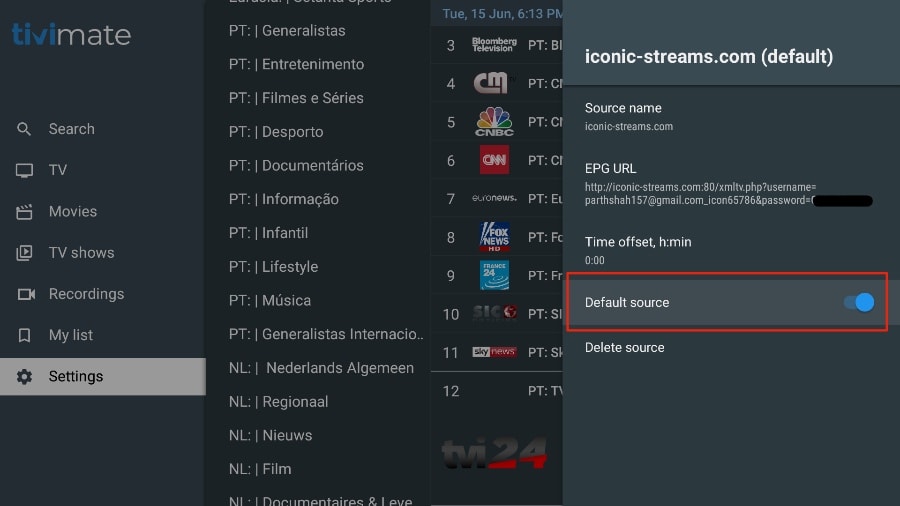
If you don’t see an EPG enabled in the TiviMate app, consider enabling it in the app’s Settings.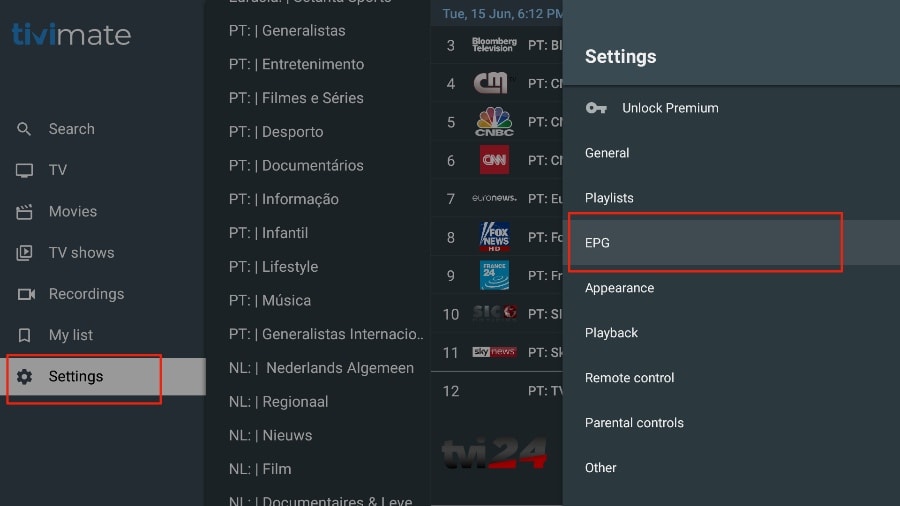
As I mentioned above, the major features of TiviMate are behind a paywall. You need to pay for the premium version to enjoy TiviMate at its greatest potential.
When you try to access any premium feature without a premium account, TiviMate will ask you to upgrade to premium. For example, when you try to add a channel to your list of favorites, TiviMate will prompt you to upgrade the app. If you wish to continue with the free version, you can hit Cancel and keep using the free TiviMate app on FireStick.
To purchase the premium version, you need to use the TiviMate Companion app from the Google Play Store.
Tivimate App Subscription is not included in our plans.
- WIE MAN SMARTERS IPTV EINRICHTET
- SMART TV (Samsung/LG/Android)
- FIRESTICK : Wie installiere ich SMARTERS IPTV
- APPLE ( iPhone/iPad/Apple TV)
- ANDROID ( Smartphone,Android Box)
- PC/MAC (VLC Software)
- STB Emulator
- ROKU Device
- SONY TV
- FIRESTICK : Wie installiere ich TiviMate
- WIE RICHTE ICH TIVIMATE EIN
Schritt 1: Sobald die App installiert ist, öffnen Sie die IPTV Smarters Pro-App und klicken Sie auf “Neuen Benutzer hinzufügen”.
Schritt 2: Jetzt müssen Sie sich in der App anmelden. Es gibt zwei Möglichkeiten, dies zu tun. Entweder indem Sie die M3U-Playlist verwenden oder indem Sie den Benutzernamen und das Passwort verwenden, das die Xtream-Codes-API ist.
Der Benutzername und das Passwort können gefunden werden, indem Sie die E-Mail-Anmeldeinformationen betrachten, die wir Ihnen geschickt haben.
Schritt 3: Sobald Sie sich angemeldet haben, werden Sie zur Benutzerliste weitergeleitet. Klicken Sie auf das Profil, das Sie gerade erstellt haben.
Schritt 4: Herzlichen Glückwunsch, Sie haben die IPTV Smarters Pro App nun erfolgreich eingerichtet und konfiguriert.
Einrichtungsanweisungen für einen Samsung/LG/Android-Fernseher
Suchen Sie auf Ihrem Fernseher nach einer der unten aufgeführten Apps:
IBO Player (Sehr empfohlen/Sehr einfach einzurichten)
IPTV Smarters Pro (Xtream Codes API auswählen) (Sehr empfohlen/Sehr einfach einzurichten)
DUPLEX play
Flix IPTV
SET IPTV
ELK Player
Nanomid
Smart IPV
Smart STB
STB EmuSobald Sie eine dieser empfohlenen Apps installiert haben,
Können Sie die Abonnementinformationen verwenden, die Sie von uns erhalten haben, um sich anzumelden.
Falls Sie auf Probleme stoßen, kontaktieren Sie bitte unser Support-Team über WhatsApp, und sie werden Ihnen dabei helfen, das Abonnement in Ihrer App einzurichten.
1. Zuerst werden wir die App „Downloader“ installieren.
Diese App wird Ihnen dabei helfen, IPTV Smarters auf FireStick zu sideloaden (da Browser-Downloads nicht erlaubt sind).
Sie können auch unseren ausführlichen Leitfaden lesen, wie man Apps auf FireStick mit Downloader sideloadet.
2. Klicken Sie auf die Option „Finden > Suchen“ auf dem Startbildschirm von FireStick.
3. Geben Sie den Namen der App ein (die heißt Downloader).
Wählen Sie die Option „Downloader“, wenn sie in den Suchergebnissen angezeigt wird.
Wählen Sie das Downloader-Symbol auf dem folgenden Bildschirm aus und laden Sie die App herunter und installieren Sie sie.
4.Kehren Sie nach der Installation der Downloader-App zum Startbildschirm von FireStick zurück.
In der Menüleiste klicken Sie auf “Einstellungen”.
5. In den Einstellungen wählen Sie die Option “Mein Fire TV”.
6. Wenn auf dem nächsten Bildschirm die folgende Reihe von Optionen angezeigt wird, klicken Sie auf “Entwickleroptionen“.
7. Klicken Sie auf “Installation aus unbekannten Quellen“.
8. Klicken Sie auf “Downloader“, um den Status auf “EIN” zu ändern.
Damit haben Sie die FireStick-Einstellungen konfiguriert, um die Installation von IPTV Smarters und anderen Apps von Drittanbietern zu ermöglichen. Folgen Sie den untenstehenden Schritten:
9. Sie können nun die Downloader-App öffnen.
Wenn Sie diese App zum ersten Mal ausführen, erscheint eine Reihe von Hinweisen. Ignorieren Sie diese, bis Sie den folgenden Bildschirm sehen.
Auf diesem Bildschirm müssen Sie auf das URL-Textfeld auf der rechten Seite klicken (stellen Sie sicher, dass die Option “Startseite” im linken Menü ausgewählt ist), wo steht ‘http://’.
10.Gehen Sie voran und geben Sie den folgenden Pfad in dieses Fenster ein: https://www.iptvsmarters.com/smarters.apk
Klicken Sie auf “LOS”.
11. Geben Sie ihm eine Minute oder zwei, bis IPTV Smarter auf Ihr FireStick-Gerät heruntergeladen wurde.
12.Wenn der Download abgeschlossen ist, wird die Downloader-App die APK-Datei ausführen, und die Installation wird beginnen.
Klicken Sie auf “Installieren“.
13. Warten Sie, bis die Installation abgeschlossen ist.
14.Die Installation ist abgeschlossen mit der Benachrichtigung “App installiert”.
Sie können jetzt auf ÖFFNEN klicken und mit IPTV Smarters beginnen.
Ich empfehle, zuerst auf “FERTIG” zu klicken, damit Sie die APK-Datei löschen und etwas Speicherplatz auf dem FireStick freigeben können.
15.Wenn Sie oben auf “FERTIG” geklickt haben, befinden Sie sich wieder in der Downloader-Benutzeroberfläche.
Klicken Sie auf “Löschen”.
16. Erneut auf “Löschen” klicken.
Großartig! Sie haben jetzt die IPTV Smarters App auf dem FireStick.
Apple (iPhone/iPad/Apple TV)
Bitte installieren Sie eine der empfohlenen iOS-Apps unten:
1. IBO Player (Sehr empfohlen/Sehr einfach einzurichten)
2. IPTV Smarters Pro (Xtream Codes API auswählen) (Sehr empfohlen/Sehr einfach einzurichten)
3. GSE IPTV (Xtream Codes API auswählen)
4. ELK PlayerSobald Sie eine dieser empfohlenen Apps installiert haben, wählen Sie Xtream Codes API, und Sie können die Abonnementinformationen, die Sie von uns erhalten haben, verwenden, um sich anzumelden.
Falls Sie auf Probleme stoßen, kontaktieren Sie bitte unser Support-Team auf WhatsApp, und sie werden Ihnen dabei helfen, das Abonnement in Ihrer App einzurichten.
Gehen Sie zum Play Store und suchen Sie nach einer der empfohlenen Apps unten:
- IBO Player (Sehr empfohlen/Sehr einfach einzurichten)
- IPTV Smarters Pro (Xtream Codes API auswählen) (Sehr empfohlen/Sehr einfach einzurichten)
- DUPLEX play
- Flix IPTV
- SET IPTV
- ELK Player
- Nanomid
- Smart IPV
Sobald Sie eine dieser empfohlenen Apps installiert haben, können Sie die Abonnementinformationen, die Sie von uns erhalten haben, verwenden, um sich anzumelden.
Falls Sie auf Probleme stoßen, kontaktieren Sie bitte unser Support-Team auf WhatsApp, und sie werden Ihnen dabei helfen, das Abonnement in Ihrer App einzurichten.
IPTV auf Ihrem Computer & Laptop schauen
- IPTV Smarters Pro (Wählen Sie die Xtream Codes API aus. ) Download
- Kodi IPTV Player Download
- Download VLC ( Download URL https://www.videolan.org/vlc/index.html)
- Öffnen Sie den VLC-Player.
- Gehen Sie zu Medien -> Netzwerkstream öffnen.
- Fügen Sie Ihre Abonnement-M3U-URL ein, die wir Ihnen geschickt haben, und drücken Sie auf “Wiedergabe”.
- Warten Sie, bis alle Kanäle geladen sind (dies kann einige Zeit dauern).
- Falls Sie Probleme mit dem Laden der M3U haben, kontaktieren Sie bitte unser Support-Team auf WhatsApp, und sie werden Ihnen dabei helfen, das Abonnement in Ihrem VLC einzurichten.
Wählen Sie einen Kanal aus und genießen Sie die Show.
Dieses Tutorial wird Sie durch die einfachen Einrichtungsanweisungen für den STB Emulator führen.
‘STB Emulator’ Kann folgende IPTV Set-Top-Boxen emulieren.
IPTV Set-top Box Unterstützung MAG 200 Yes MAG 245 Yes MAG 250 Yes MAG 260 Yes MAG 270 Yes MAG 275 Yes Aura HD Yes Anleitung zur Einrichtung des STB Emulators:
- Laden Sie ‘STB Emulator’ hier aus dem Google Play Store herunter.
- Installieren Sie die ‘STB Emulator’-App und laden Sie sie. Sie werden Ihre ‘MAC-Adresse’ auf dem Bildschirm sehen.
- Tippen Sie in der Nähe der ‘oberen rechten Ecke’ und klicken Sie dann auf ‘Einstellungen’ – das vierte Symbol von rechts.
- Tippen Sie auf ‘Profile’.
- Tippen Sie auf ‘Testportal’, um das vorhandene Profil zu ändern, oder auf ‘Profil hinzufügen’, um ein neues zu erstellen.
- Tippen Sie auf ‘STB-Modell’.
- Tippen Sie auf ‘MAG 250’ oder das entsprechende STB-Modell, das Sie emulieren möchten.
- Tippen Sie auf ‘Portal-Einstellungen’.
- Geben Sie Ihre ‘Portal-URL’ ein (Überprüfen Sie Ihre Aktivierungs-E-Mail) und klicken Sie auf OK.
- Jetzt tippen Sie auf ‘Bildschirmauflösung’.
- Beenden Sie die App und starten Sie sie neu.
- Sie sehen nun Ihre Senderliste.
Falls Sie auf Probleme stoßen, kontaktieren Sie bitte unser Support-Team auf WhatsApp. Sie werden Ihnen dabei helfen, das Abonnement in Ihrer App einzurichten.
Wie man IPTV auf Roku mit einem einfachen Trick installiert
Dieses Tutorial bietet schrittweise Anweisungen zur Installation von IPTV auf Roku. Unter Verwendung eines Roku-Geräts müssen wir IPTV “sideloaden” auf das Roku-Gerät. Die folgenden Anweisungen erfordern die Verwendung eines Computers, um die IPTV-App-Datei herunterzuladen und sie zu Ihrem Roku-Streaming-Gerät hinzuzufügen.
Wenn Sie einen anderen IPTV-Player wie TiviMate verwenden, können Sie IPTV auf Roku auch durch Casting auf Ihr Roku-Gerät anschauen. IPTV Smarters ist einer der besten IPTV-Player, kompatibel mit Hunderten von IPTV-Diensten, die eine Server-URL verwenden.
Wie auch immer, kommen wir dazu, wie man IPTV auf Roku installiert. Ich habe die Anweisungen in vier Teile unterteilt, um sie leichter verständlich zu machen:
- Teil 1: Aktivieren der Entwickleroptionen auf Roku
- Teil 2: Hinzufügen des IPTV Smarters Kanals
- Teil 3: Herunterladen des IPTV Smarters-Pakets auf deinen Computer
- Teil 4: Installation von IPTV Smarters auf Roku
Keine Sorge, der Prozess ist einfacher als es klingt. Lass uns beginnen.
Entwickleroptionen auf Roku aktivieren
1. Starten Sie Ihren Roku, indem Sie auf den HDMI-Eingang auf Ihrem Fernseher wechseln.
2. Nehmen Sie Ihre Roku-Fernbedienung und drücken Sie die folgenden Tasten in dieser Reihenfolge: Home-Taste x3, Pfeil nach oben x2, Pfeil nach rechts x1, Pfeil nach links x1, Pfeil nach rechts x1, Pfeil nach links x1, Pfeil nach rechts x1.
3. Wenn alles richtig gemacht wurde, erscheint das Entwickleroptionen-Menü auf Ihrem Roku-Fernsehbildschirm.
4. Schreiben Sie die auf dem Bildschirm angezeigte IP-Adresse auf..
5. Wählen Sie ‘Installer aktivieren und neu starten‘ aus (bei mir steht ‘Deaktivieren’, weil ich das bereits gemacht habe).
6. Scrollen Sie durch die Lizenzvereinbarung für Entwicklerwerkzeuge und wählen Sie ‘Ich stimme zu‘.
7. Erstellen Sie ein Webserver-Passwort mithilfe der Tastatur, die angezeigt wird. Sie benötigen Ihr Webserver-Passwort für einen späteren Schritt.
8. Wählen Sie Passwort festlegen und neu starten.
Teil 2: IPTV Smarters Kanal hinzufügen
1. Gehen Sie zu Ihrem Computer und öffnen Sie mit einem beliebigen Browser my.roku.com.
2. Geben Sie Ihren Benutzernamen und Ihr Passwort für Ihr Roku-Konto ein und klicken Sie auf ‘Absenden’.
3. Nachdem Sie sich angemeldet haben, wählen Sie ‘Kanal mit einem Code hinzufügen’ unter ‘Konto verwalten’ aus..
4. Geben Sie iptvsmarters in das Feld ein. Stellen Sie sicher, dass Sie es genau so eingegeben haben, wie angezeigt.
5. Wählen Sie ‘Kanal hinzufügen’, um ihn zu Ihrem Roku hinzuzufügen.
6. Klicken Sie auf OK auf der Warnmeldung, die erscheint.
7. Wählen Sie Ja, Kanal hinzufügen in dem darauf folgenden Popup aus.
Teil 3: Laden Sie das IPTV Smarters-Paket auf Ihren Computer herunter.
Jetzt ist es an der Zeit, die IPTV Smarters-Datei auf Ihren Computer herunterzuladen..
1. Gehen Sie auf Ihrem Computer zu diesem Link, und der Download sollte automatisch starten: https://www.whmcssmarters.com/clients/dl.php?type=d&id=108
Note: FireStickTricks.com hostet oder verteilt diese APK nicht. Der Link führt zur Website, auf der sie gehostet ist.
2. Speichern Sie das IPTV Smarters-Paket an einem zugänglichen Ort auf Ihrem Computer (Sie müssen gleich an diesen Ort navigieren). Ich werde es auf meinem Desktop speichern.
Teil 4: Installieren von IPTV Smarters auf Roku
1. Öffnen Sie auf Ihrem Computer einen beliebigen Browser. Geben Sie in die Adressleiste die IP-Adresse Ihres Roku ein, die Sie zuvor notiert haben.
2. Ein Anmeldefenster wird erscheinen. Geben Sie ‘rokudev’ als Benutzernamen ein. Geben Sie als Passwort das Webserver-Passwort ein, das Sie zuvor erstellt haben. Klicken Sie abschließend auf ‘Anmelden’.
3. Klicken Sie auf ‘Hochladen’ auf der nächsten Seite.
4. Gehen Sie zum Speicherort, an dem Sie das IPTV Smarters-Paket heruntergeladen haben (bei mir war es mein Desktop). Wählen Sie den heruntergeladenen Ordner aus und klicken Sie auf ‘Öffnen’.
5. Klicken Sie auf ‘Installieren’, sobald die Datei hochgeladen wurde.
6. Wenn Sie diesen Bildschirm sehen, haben Sie es richtig gemacht!
7. Kehren Sie zu Ihrem Roku-Gerät zurück, und IPTV Smarters wird auf dem Fernsehbildschirm angezeigt sein.
8. Melden Sie sich einfach mit Ihren IPTV Smarters Anmeldedaten an und schon sind Sie drin!
Schritte zum Ansehen von IPTV auf Roku über Bildschirmspiegelung
Um IPTV auf Ihrem mit Roku verbundenen Fernseher über Bildschirmspiegelung zu streamen, müssen Sie IPTV Smarters oder Smart IPTV (einen anderen IPTV-Player) auf Ihrem Smartphone installieren. Sobald Sie einen dieser beiden Player haben, können Sie die Cast- oder Spiegelungsoption auf Ihrem Gerät verwenden.
Mit der Cast-/Spiegelungsoption können Sie von jedem Gerät im selben WLAN-Netzwerk, das die IPTV-Player-App verwendet, auf den Inhalt auf Ihrem Roku-Fernseher zugreifen.
Installieren Sie IPTV auf einem Sony Smart TV über den Play Store
Anfänglich hatte der Sony Smart TV das Android TV-Betriebssystem, und vor Kurzem haben sie auf das Google TV-Betriebssystem umgestellt. Beide TV-Betriebssysteme verfügen über den Google Play Store zur Installation von Streaming-Apps, und somit ist auch das Installationsverfahren gleich.
1. Schalten Sie Ihren Sony Smart TV ein und gehen Sie zum Bereich “Apps”.
2. Wählen Sie den “Play Store” aus und geben Sie den Namen des IPTV in die Suchleiste ein.
3. Wählen Sie den Play Store – IPTV auf dem Sony TV aus.
4. Wählen Sie die App aus den Suchergebnissen und wählen Sie dann “Installieren” aus.
5. Warten Sie, bis die Installation abgeschlossen ist, und öffnen Sie dann die IPTV-App.
6. Beginnen Sie damit, die Inhalte auf Ihrem Smart TV zu streamen.
Installieren Sie IPTV auf einem Sony Smart TV mithilfe des Downloaders.
Die meisten IPTV-Apps sind im Google Play Store nicht verfügbar. In diesem Fall können Sie die App mithilfe der Downloader-App installieren.
1. Starten Sie Ihren Smart-TV und wählen Sie “Apps” aus.
2. Öffnen Sie den Play Store und klicken Sie auf die Suchleiste.
3. Suchen Sie nach “Downloader” und wählen Sie die App aus der Vorschlagsliste aus.
4. Klicken Sie auf “Installieren”, um die Downloader-App auf Ihrem Fernseher zu installieren.
5. Gehen Sie zurück zum Startbildschirm und wählen Sie “Einstellungen” aus.
6. Wählen Sie “Geräteeinstellungen” > “Sicherheit und Einschränkungen” > “Unbekannte Quellen” aus.
7. Wählen Sie die “Downloader-App” aus und aktivieren Sie den Schalter, um die Installation von Apps aus unbekannten Quellen zu ermöglichen.
8. Starten Sie die Downloader-App und geben Sie die URL der IPTV-Apk in das URL-Feld ein.
9. Klicken Sie auf “Los”, und die IPTV-Anwendung wird auf Ihrem Smart-TV heruntergeladen. Wählen Sie dann “Installieren”.
10. Sobald die Installation abgeschlossen ist, öffnen Sie die IPTV-App und genießen Sie das Streamen von Inhalten auf Ihrem Smart-TV.
Installieren Sie IPTV auf einem Sony Smart TV mit einem USB-Laufwerk
Sie können auch die APK-Datei auf Ihrem PC erhalten und die Datei zur Installation auf den Smart-TV mit einem USB-Laufwerk übertragen.
1. Schalten Sie Ihren PC ein und wählen Sie den Browser aus.
2. Geben Sie den Namen des IPTV zusammen mit “apk” am Ende in die Suchleiste ein.
3. Laden Sie die IPTV APK-Datei von einer vertrauenswürdigen Website herunter.
4. Verbinden Sie ein USB-Laufwerk mit Ihrem PC und verschieben Sie die IPTV APK-Datei auf das Laufwerk.
5. Trennen Sie den USB-Stick vom PC und schließen Sie ihn an den USB-Anschluss des Smart TVs an.
6. Auf Ihrem Smart-TV gehen Sie zu “Einstellungen” und wählen Sie “Gerätepräferenzen” aus.
7. Wählen Sie “Sicherheit & Beschränkungen” aus. Klicken Sie auf “Unbekannte Quellen” und aktivieren Sie sie.
8. Verschieben Sie nun die IPTV APK-Datei auf Ihren Smart TV und öffnen Sie die Datei.
9. Klicken Sie auf “Installieren” und die IPTV-App wird auf Ihrem Smart TV installiert.
10. Öffnen Sie die IPTV-App und beginnen Sie mit dem Streaming des Inhalts.
Bitte gehen Sie die untenstehenden drei Teile durch, um TiviMate auf dem FireStick zu installieren.
Teil 1: Laden Sie “Downloader” auf dem FireStick
1. Öffnen Sie den Startbildschirm des FireStick.
2. Gehen Sie zum Menü “Finden”.
3. Wählen Sie oben “Suchen” aus.
4. Es wird eine virtuelle Tastatur auf Ihrem FireStick geöffnet.
5. Beginnen Sie mit der Eingabe von “Downloader”. Wählen Sie “Downloader” aus, wenn es unter den Vorschlägen unterhalb der Tastatur angezeigt wird.
6. Wählen Sie die App “Downloader” aus, die Sie anhand ihres orangefarbenen Hintergrunds erkennen können. Wählen Sie dann auf dem folgenden Bildschirm die Schaltfläche “Herunterladen” oder “Laden” aus.
Die Installation der Downloader-App auf Ihrem FireStick dauert einen Moment. Bevor Sie die Downloader-App öffnen, um die TiviMate APK zu installieren, müssen Sie Änderungen im FireStick-Einstellungsmenü vornehmen. Andernfalls erhalten Sie während der Installation Fehlermeldungen.
Teil 2: Ändern Sie die FireStick-Einstellungen
1. Drücken Sie die “Home-Taste” auf Ihrer FireStick-Fernbedienung.
2. Gehen Sie zum “Einstellungen-Zahnrad” ganz rechts.
3. Scrollen Sie nach unten und wählen Sie “Mein Fire TV” aus.
4. Wählen Sie “Entwickleroptionen”.
5. Suchen Sie nach “Apps aus unbekannten Quellen”. Standardmäßig ist es deaktiviert. Wählen Sie es aus, um es einzuschalten.
Jetzt können Sie ohne Probleme jede App-Installationsdatei (APK) bequem auf dem FireStick sideloaden. Befolgen Sie die unten stehenden Schritte, um die TiviMate APK mithilfe der Downloader-App auf dem FireStick zu installieren.
Teil 3: Verwenden Sie Downloader, um TiviMate auf dem FireStick zu installieren
1. Gehen Sie im FireStick-Startmenü zum Menü “Apps”.
2. Öffnen Sie die Downloader-App und wählen Sie auf dem Startbildschirm das Feld “URL eingeben” aus.
3. Es wird eine virtuelle Tastatur geöffnet. Geben Sie “https://www.firesticktricks.com/tivi” ein und drücken Sie unten auf “Los”.
4. Downloader wird die neueste TiviMate APK auf Ihrem FireStick installieren. Sie hat eine Größe von etwa 11 MB.
5. Klicken Sie auf “Installieren”, wenn Sie dazu aufgefordert werden.
6. Nach der Installation können Sie die APK-Datei von Ihrem Gerät löschen.
Ich schlage vor, dass unsere Leser die APK-Datei auf dem FireStick löschen, da sie keinen Zweck mehr erfüllt. Wir haben sie bereits verwendet, um TiviMate zu installieren. Im Allgemeinen empfehle ich Ihnen, Ihren FireStick frei von unnötigen Dateien und Medien zu halten. Wenn der Speicherplatz knapp wird, kann dies zu einer langsamen Leistung des Geräts führen.
Das ist alles! Sie haben die TiviMate APK erfolgreich auf Ihrem FireStick installiert. Jetzt können Sie Hunderte von Live-Kanälen, Filmen und TV-Serien auf dem FireStick genießen. Bevor wir die App besprechen, machen wir eine schnelle Anpassung für unsere Bequemlichkeit.
TiviMate IPTV Player ist eine süchtig machende App, die Sie wahrscheinlich häufig nutzen werden. Ich empfehle Ihnen, die App direkt auf dem Startbildschirm des FireStick zu platzieren, um einen einfachen Zugriff zu ermöglichen. Gehen Sie die folgenden Schritte durch, um dies zu tun.
1. Drücken und halten Sie die “Home-Taste” auf Ihrer FireStick-Fernbedienung gedrückt.
2. Wählen Sie auf dem folgenden Bildschirm “Apps” aus.
3. Scrollen Sie zu “TiviMate IPTV Player”, wählen Sie es jedoch nicht aus. Drücken Sie stattdessen die “Optionen-Taste” auf Ihrer FireStick-Fernbedienung.
4. Auf der rechten Seite finden Sie die Option “Verschieben”. Wählen Sie sie aus.
5. Verschieben Sie TiviMate in die oberste Reihe und drücken Sie dann die “Auswahltaste” auf Ihrer Fernbedienung, um den neuen Speicherort zu bestätigen.
6. Jetzt können Sie bequem auf den TiviMate Player von Ihrem FireStick-Startbildschirm aus zugreifen. Es ist nicht mehr notwendig, jedes Mal durch ein Menü zu navigieren.
1. Öffnen Sie die TiviMate-App.
2. Wählen Sie “Playlist hinzufügen” aus.
3. TiviMate wird Sie bitten, eine Wiedergabeliste mit Hilfe eines M3U-Links, Xtream-Codes oder eines Stalker-Portals hinzuzufügen. Wählen Sie “M3U-Wiedergabeliste” aus.
In diesem Artikel werden wir einen M3U-Link verwenden, um einen IPTV-Dienst in der TiviMate-App abzuspielen. Wenn Sie sich für unseren IPTV-Service anmelden, erhalten Sie eine E-Mail mit den entsprechenden Login-Informationen und einem M3U-Link. Wenn Sie keinen M3U-Link erhalten, kontaktieren Sie bitte unseren Kundensupport.
4. TiviMate wird nach Ihrem M3U-Link fragen. Geben Sie Ihren M3U-Link ein und drücken Sie dann auf “Weiter”.
5. TiviMate wird den IPTV-Dienst laden und einen Einblick in die Anzahl der verfügbaren Kanäle und Filme im IPTV-Paket bieten.
6. Geben Sie einen Namen für die Wiedergabeliste ein.
7. Wenn die Wiedergabeliste fertig verarbeitet ist, wählen Sie “Fertig” aus.
Nach ein bis zwei Minuten sehen Sie den Inhalt des IPTV-Dienstes in der TiviMate-App erscheinen.
Unser IPTV-Dienst enthält einen dedizierten EPG (elektronischer Programmführer), wie unten dargestellt.
Wenn Sie im TiviMate-App keinen EPG sehen, sollten Sie in den Einstellungen der App prüfen, ob er aktiviert ist.
Wie bereits erwähnt, sind die wichtigsten Funktionen von TiviMate kostenpflichtig. Sie müssen für die Premium-Version bezahlen, um TiviMate in vollem Umfang nutzen zu können.
Wenn Sie versuchen, auf eine Premium-Funktion zuzugreifen, ohne über ein Premium-Konto zu verfügen, wird TiviMate Sie auffordern, auf die Premium-Version zu aktualisieren. Wenn Sie zum Beispiel versuchen, einen Kanal zu Ihrer Favoritenliste hinzuzufügen, wird TiviMate Sie auffordern, die App zu aktualisieren. Wenn Sie weiterhin die kostenlose Version verwenden möchten, können Sie auf “Abbrechen” klicken und die kostenlose TiviMate-App auf dem FireStick weiterhin nutzen.
Um die Premium-Version zu erwerben, müssen Sie die TiviMate Companion-App aus dem Google Play Store verwenden.
Die TiviMate-App-Abonnement ist nicht in unseren Plänen enthalten.